
Fulcrum Mail basics
Everyday email in Fulcrum Mail: the inbox and folders, composing and scheduling messages, snoozing, labels, advanced search and automatic filters.
Email lives in the Fmail app, the first item in the left rail. This guide covers the inbox, writing and sending, and keeping mail organised with labels, search and filters. For signatures, notifications and importing old mail, see Mail settings.
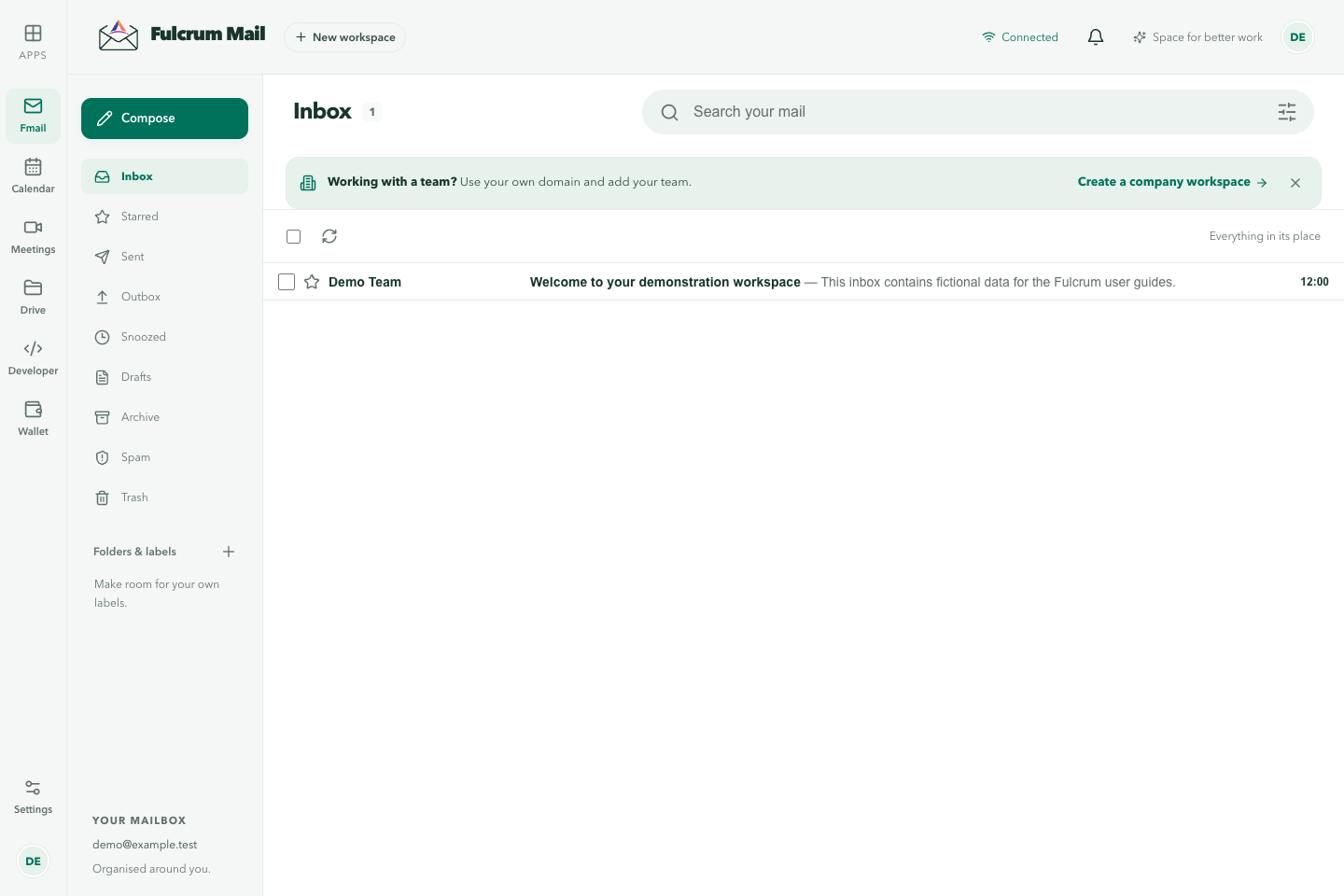
Folders and the message list
The sidebar holds the standard folders: Inbox, Starred, Sent, Outbox, Snoozed, Drafts, Archive, Spam and Trash. Your own labels sit below them under Folders & labels.
- Use Refresh mail to check for new messages, and Select all messages on this page to act on a whole page at once.
- With messages selected, you can archive, delete or report them as spam. You can also Mark as unread, Snooze selected messages or Add label….
- The more-actions menu adds Mark as read, Snooze… and Report spam.
- Open a message to Reply, Reply all or Forward. Select the star to keep it in Starred.
- Switch between Split view (the list beside the open message) and Full-width view.
Snooze a message
Snoozing hides a message until a time you choose, then returns it to the inbox. Choose Snooze…, set the Return to inbox date and time in Snooze messages, and select Snooze. Until then, the message waits in Snoozed.
Write and send an email
- Select Compose. On a phone, tap the floating compose button. A New Message window opens.
- Fill in To and, if you need them, Cc and Bcc. If you have more than one address, choose which one to send From.
- Add a Subject and write your message.
- Use the toolbar to format text, Attach files, Insert link, Insert emoji, Insert photo, add a file from Drive with Insert files using Drive, or Insert signature.
- Select Send. To send later, open More send options next to Send and choose Schedule send.
Each attachment can be up to 100 MB. Save & close keeps a draft in Drafts, and Discard draft deletes it. For a bigger writing area, open More options and choose Full screen.
Schedule a message
The schedule dialog offers Tomorrow morning, Tomorrow afternoon, Monday morning or Select date and time. Scheduled messages wait in Outbox. To stop one before it goes, open it there and select Cancel send.
Labels
- Under Folders & labels, select Create label.
- Enter a Label name, such as a project or client, and select Create label.
- To rename a label, change its colour or delete it, use its edit button to open Edit folder. When you delete a label, Fulcrum asks where to Move messages to, so nothing is lost.
Search your mail
Type into Search your mail. The quick filters Unread, Has attachment, Last 7 days and Starred narrow results in one click. Your Recent searches are kept for reuse.
For a precise search, open Show search options. You can combine From, Subject, Includes the words, Doesn't have, Size and Date within, and choose where to look, from All Mail to a single folder.
Filter incoming mail automatically
- Open Show search options and describe the messages you want to catch, for example everything from one sender.
- Select Create filter.
- Choose what should happen to matching messages. The options are Skip the Inbox (Archive it), Mark as read, Star it, Move to, Apply labels, Forward it to, Delete it (move to Trash), Never send it to Spam and Categorise as.
- To tidy up mail you already have, tick the option to also apply the filter to matching messages.
- Optionally give the filter a name, then select Create filter.
Before a filter can forward mail, you need to verify the forwarding address. Select Send confirmation code, then Verify address with the code that arrives. To review, edit or switch off filters later, go to Settings → Filters.
If you track customer conversations in a CRM as well, connect your mailbox to Fulcrum CRM so that replies are logged on the contact automatically.
Example: handle an enquiry from start to finish
Open the enquiry, read the full thread and check the sender. Reply with the next step, attach only the intended files, and check the To, Cc and Bcc fields before sending. Use a label for the topic and snooze the message if you need to return to it at a specific time.
Check the send result
A draft, a scheduled message, an item in Outbox and a sent message are different states. If a send appears stuck, inspect Outbox and the displayed error before sending another copy. For a scheduled message, verify the chosen date and time rather than assuming it was sent immediately.
Last updated