
Choose live voice or a recorded message
Choose live voice or a recorded message in Cortex Chat: practical steps, setting explanations, result checks and troubleshooting.
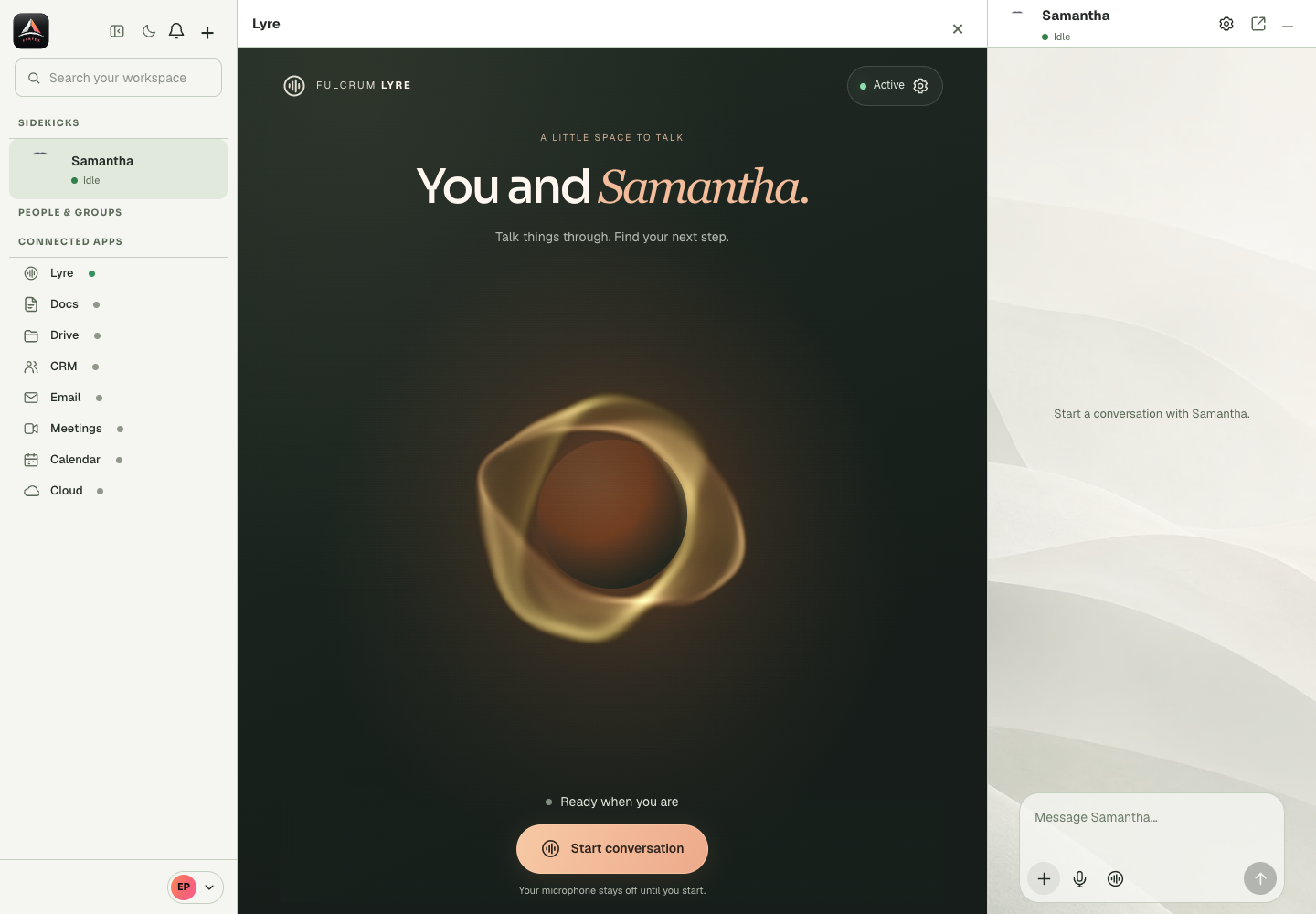
Record voice message creates an audio attachment for asynchronous review. Start voice conversation opens a live Lyre-powered interaction with the selected Sidekick. They use related microphone permissions but have different controls and completion states.
Before you start
Choosing a voice, activating the profile and starting a conversation are separate stages. A voice catalogue can load while activation fails. An activated profile can still be unable to start because the service reports a readiness or credits issue. The microphone and playback permissions introduce another layer when an actual session begins. Read the current status and the specific error at the stage where it occurs. Do not blame microphone settings for a failed activation request before capture has even started. Review the intended Sidekick profile before opening advanced Lyre settings, and reconcile an uncertain configuration or payment result before repeating it.
Step-by-step
- Decide whether the recipient should receive a recording or you want an immediate spoken exchange.
- Choose Record voice message for an attachment, or the live voice control for the selected Sidekick.
- Review the relevant recording preview or live session status before continuing.
What the settings mean
| Control or state | Meaning |
|---|---|
| Voice choice | The selected catalogue entry, which still needs saving. |
| Activation | The saved enabled state for the selected voice profile. |
| Readiness | Whether the service currently allows a session to start. |
| Live session | The actual connecting, listening, speaking and ended interaction. |
Check the result
You use the intended communication mode without accidentally starting another one.
If it does not work
If a control is disabled, check recording/live-session conflicts and microphone requests rather than assuming voice is globally unavailable.
Continue with the right context
Return to the Cortex Chat guide index to choose another task. Keep the current account, assistant and conversation in view when following the next guide. To use the product, open Cortex Chat.
- Activate voice for a Sidekick
- Choose or change a Sidekick voice
- Start a live conversation with your Sidekick
Last updated