
Control group message and media permissions
Control group message and media permissions in Cortex Chat: practical steps, setting explanations, result checks and troubleshooting.
Group settings separately control Send messages and Send files and media. Disabling one type of contribution is different from removing a member or changing a Sidekick’s connected-app tools.
Before you start
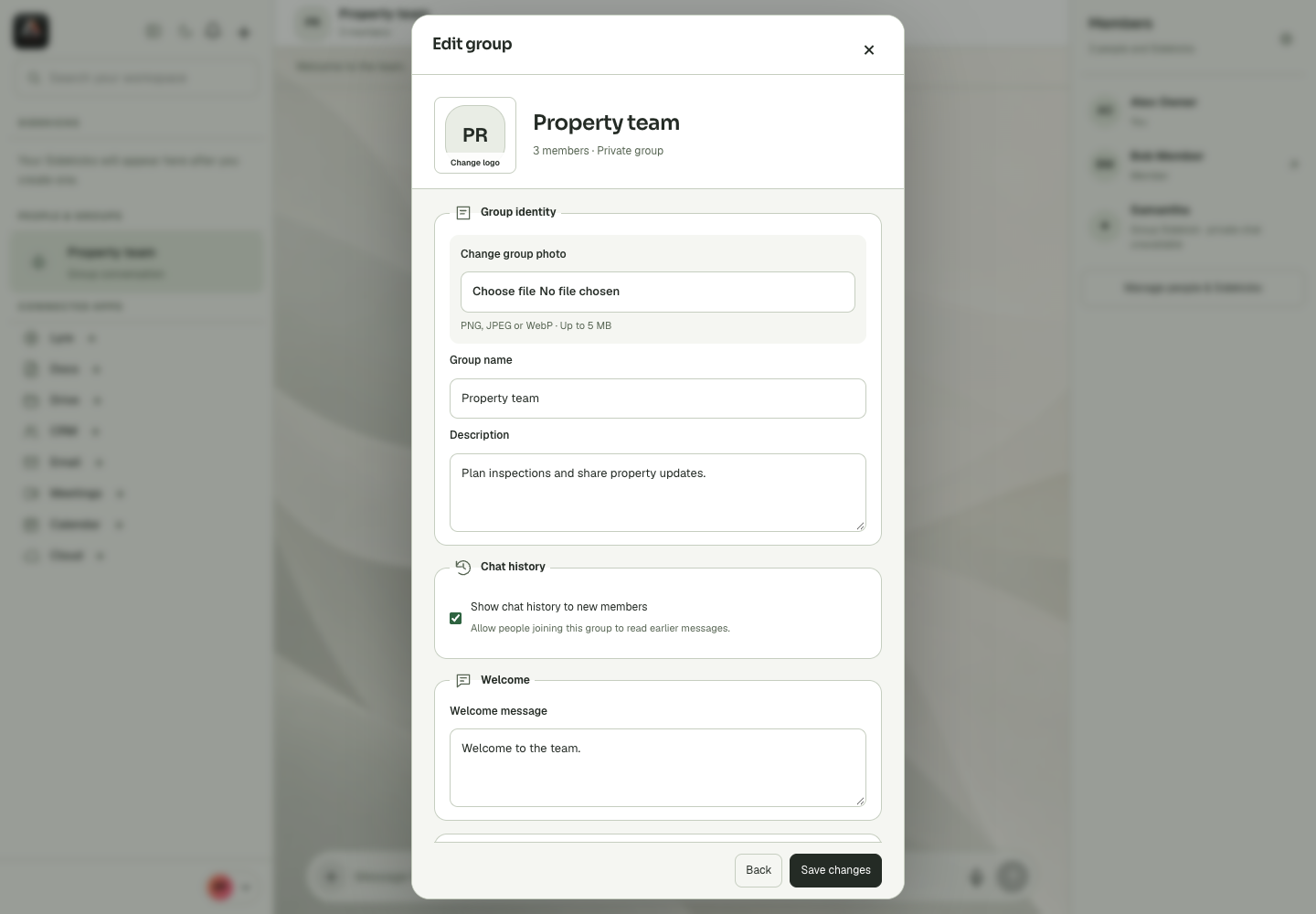
Group identity, membership, welcome text, history policy and invitation rights are shared controls. They are different from a conversation background stored on one device. Owner and administrator capabilities can also differ: the interface exposes specific rights rather than making every administrator equivalent. Review the exact group and the current saved values before changing a shared setting. If an edit is blocked, the absent or disabled control may reflect a permission boundary. Refresh stale data rather than replacing a group to work around the problem. Removing a member, revoking an invitation, leaving the group and deleting the entire group each have a different effect.
Step-by-step
- Open Edit group with permission-management rights.
- Set Send messages and Send files and media to the intended group policy.
- Save and review the resulting settings before asking members to continue work.
What the settings mean
| Control or state | Meaning |
|---|---|
| Identity | The group name, description and shared photo. |
| History | Whether joining members can read earlier conversation content. |
| Member rights | What group participants may send or invite. |
| Administrator rights | Specific group-management powers, separate from workspace tool access. |
Check the result
The group policy reflects the intended contribution rules without unrelated role changes.
If it does not work
If a user cannot send a file, check both group media permission and file validation. A 20 MB attachment limit remains relevant even when media sending is allowed.
Continue with the right context
Return to the Cortex Chat guide index to choose another task. Keep the current account, assistant and conversation in view when following the next guide. To use the product, open Cortex Chat.
Last updated