
Fulcrum Meetings
Start or schedule a Fulcrum video meeting, admit guests from the waiting room, share your screen, and record or transcribe the conversation.
Meetings is the video app in the Fulcrum Mail rail, described as Video conversations. Meetings run in the browser, with no download for you or your guests. Every Fulcrum calendar event and booking can carry a Fulcrum meeting link, and you can also start a meeting on its own.
Start a meeting
- Open Meetings and select New meeting.
- In Start a meeting, give it a Meeting name and, optionally, an Agenda.
- To invite people, add their email addresses under Invite participants (optional). Fulcrum emails them the agenda and the meeting link.
- To book it for later, tick Schedule in Calendar and set Starts and Ends. The invitation also appears in Calendar.
- Select the button to finish. It reads New meeting, Create & invite or Schedule meeting, depending on what you filled in.
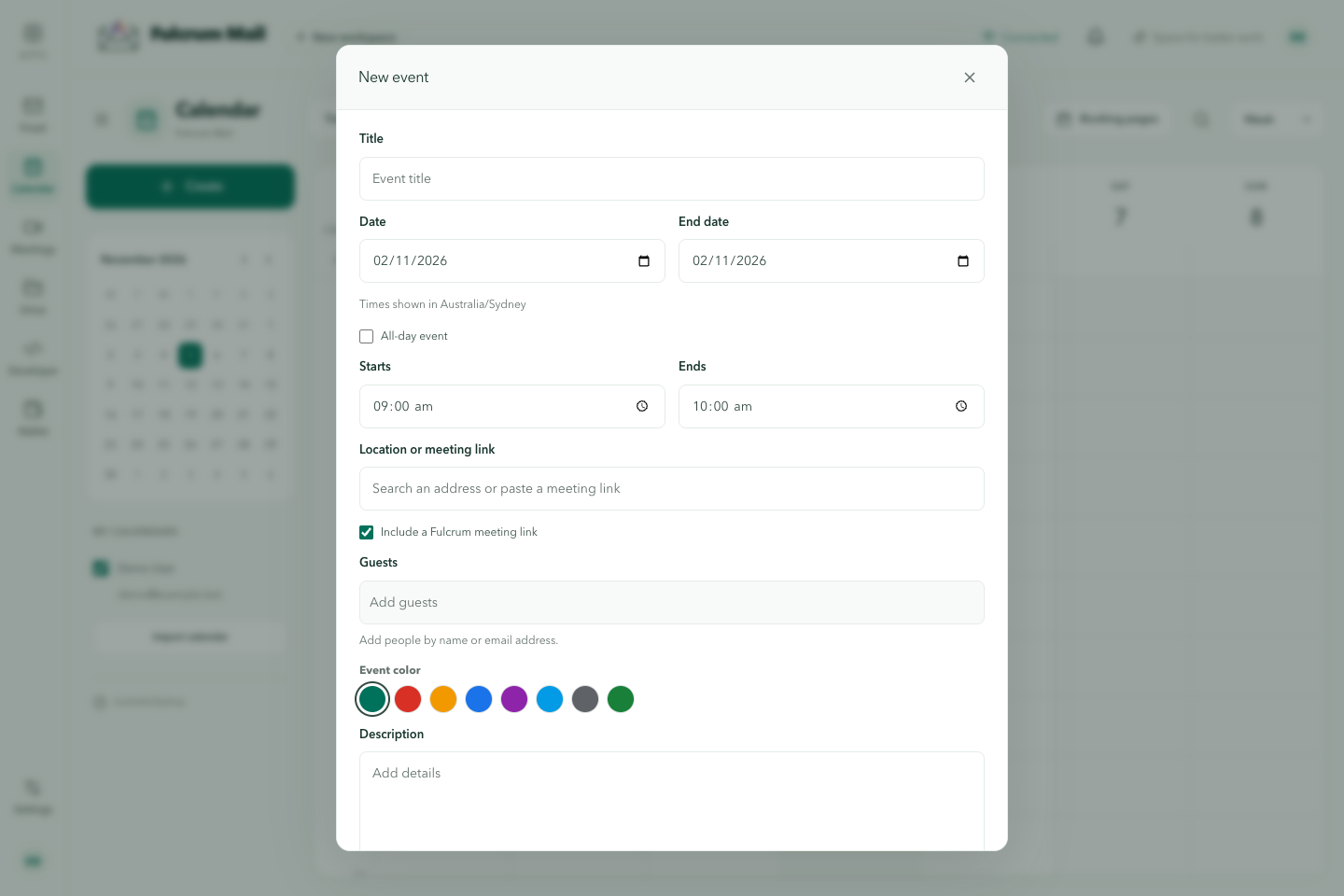
A meeting you start now opens straight away. You can also add a meeting to any event by ticking Include a Fulcrum meeting link; see the Calendar guide.
Join a meeting
- Open the meeting link from the invitation. Or, in Meetings under Have an invitation?, paste the link or meeting code and select Join meeting.
- Before you join, Your preview lets you check your camera and microphone. Both start switched off.
- Your camera and microphone are only shared after you join and the host admits you. Guests enter their name and wait at Asking to join… until the host lets them in.
During the meeting
- The controls along the bottom are Microphone, Camera, Share screen, Chat, Camera and microphone devices and Leave.
- Raise hand lets you ask to speak. The host can lower anyone's hand.
- People lists everyone in the room. Detach pops the call out into its own window so you can keep working.
- When someone asks to join, the host sees their name with Admit and Decline.
- The host can end the meeting for all participants with End for everyone.
A meeting can hold up to 25 participants.
Transcripts and recordings
The host controls capture. Everyone in the meeting can see when it is on.
- As the host, open Recording.
- Under What would you like to save?, choose Transcript or Video + transcript.
- Select Start transcription or Start recording. Stop with Stop recording & transcription.
While transcription runs, everyone can follow it live in Transcript. After the meeting, the host finds it under Recordings & transcripts in Meetings. There, Find in transcript… searches what was said, and clicking a timestamp jumps the recording to that moment. Only the host can open the meeting record.
Tell everyone before you record. Recording rules in Australia vary by state. Read our guide to recording consent in Australia before you rely on recordings.
Bring an AI assistant into the call
Hosts who use Fulcrum Sessions can invite their assistant with Assistant. The assistant listens and raises its hand when it has something to add. It only speaks once a participant says its name and "please go ahead". Inviting it starts a transcript.
Check devices before admitting a real guest
Use the preview to select the intended microphone and camera. Check browser permissions, the selected output device and whether another application is using the microphone. A guest waiting for admission has not yet joined the conversation. Ask participants to test sound before starting the agenda.
If an assistant stays silent
Confirm the intended assistant is connected and admitted. Check whether it has raised its hand and invite it by its configured name. A working transcript does not prove the assistant’s audio is reaching the room. Verify an actual spoken response before relying on it in a customer meeting.
Last updated