
Use the Fulcrum Calendar
Find your way around the Fulcrum Calendar: switch views, create and edit events, add a Fulcrum meeting link, invite guests and respond to invitations.
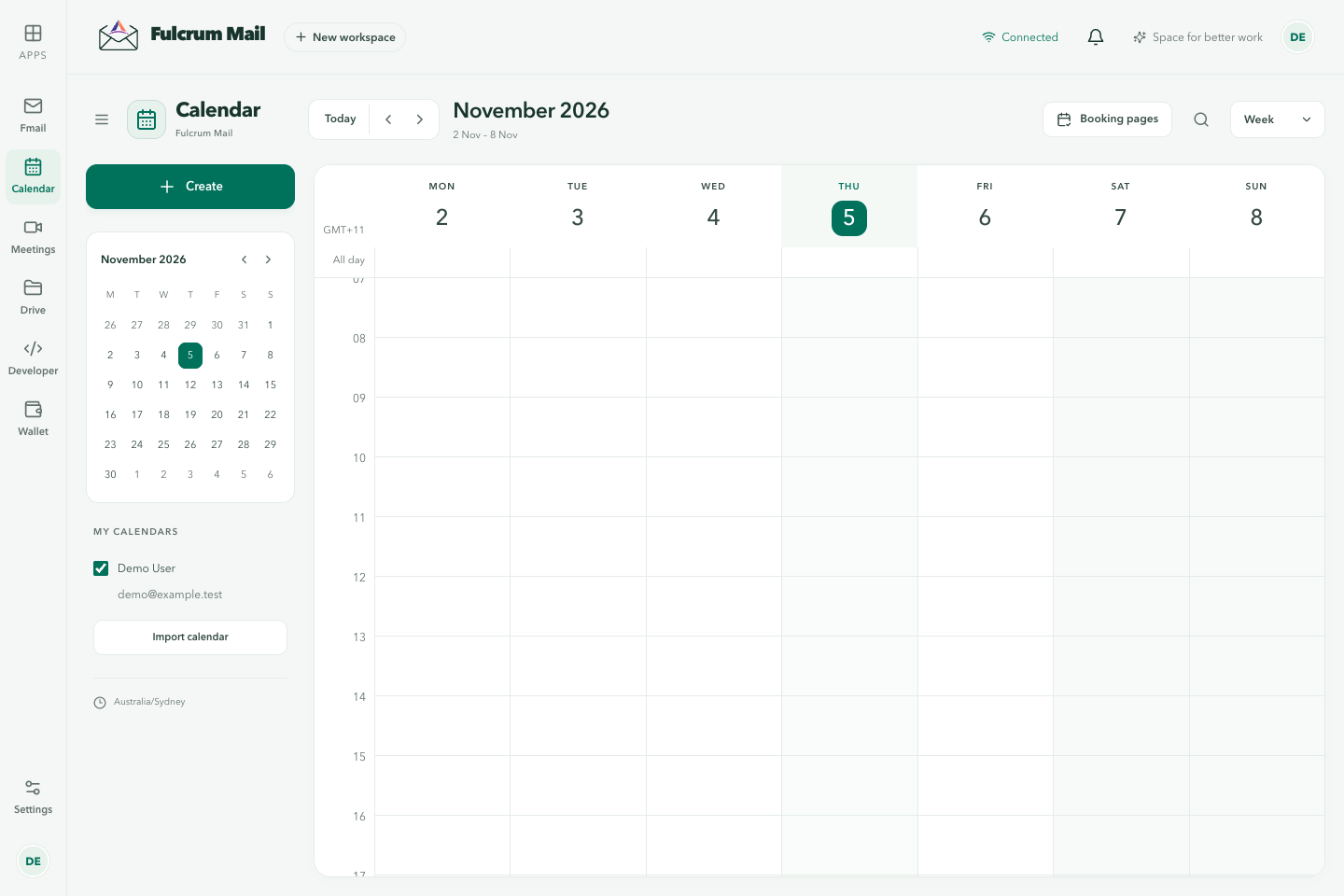
Calendar is the second app in the Fulcrum Mail rail, described as Events & schedules. It holds your events, sends and receives invitations, and is home to booking pages, the public links people use to book time with you. If you only need booking pages, you can set up booking pages without a Fulcrum mailbox; see calendar-only accounts.
Views and navigation
- Pick a view from the Calendar view menu: Schedule, Day, 3 days, Week or Month. Phones open in Schedule, which lists the next 30 days. Larger screens open in Week.
- Use Today, Previous period and Next period to move around. On a phone, swipe left or right in Day, 3-day and Schedule views.
- Click a date in the mini month in the sidebar to jump to it.
- Under My calendars, tick or untick a calendar to show or hide its events. The sidebar also shows the time zone the calendar is using.
- Search calendar finds events in the current view by title, location, description or guest.
The calendar shows times in your device's time zone. Booking pages and calendar imports have time-zone settings of their own.
Create an event
- Select Create in the sidebar. You can also click an empty time slot, click a day in Month view, or drag across several slots to choose the start and end. On a phone, tap New.
- In New event, enter a Title. Every event needs one.
- Set the Date, Starts and Ends, or tick All-day event.
- Add a Location or meeting link. Start typing an address to see suggestions, or paste a link to an online meeting.
- Leave Include a Fulcrum meeting link ticked to add a video meeting to the event. It is on by default for timed events.
- Add Guests by name or email address. Fulcrum suggests your mail contacts and workspace members.
- Optionally choose an Event color and add a Description, then select Create event.
If the event has guests, Fulcrum sends them invitations and confirms with Event saved. Guest invitations queued for delivery. New events are added to your main calendar. An event can have up to 100 guests.
Edit or delete an event
Click an event to see its details: the time, location, join button, guest list and each guest's answer (Going, Maybe, Declined or Awaiting response).
- Select Edit to change it, then Save changes. An existing meeting link stays the same when you edit the event.
- Select Delete, then Delete event to confirm. Guests receive a cancellation.
- The join button reads Join Fulcrum meeting for Fulcrum meetings. For other links it reads Join meeting or Join Microsoft Teams.
Events created by a booking page can't be edited or deleted from the calendar. Change them from Booking pages → Bookings instead; see Manage bookings.
What guests receive
Guests get an email whose subject starts with Invitation:, Updated invitation: or Cancelled:. The email contains:
- the event details
- a Join Fulcrum meeting button when there is a meeting link
- Yes, Maybe and Decline response links
- an attached calendar file, so the event can be added to any calendar app
Guests without a Fulcrum account can answer from the email. The link opens a page that asks Will you attend?. They choose a response, then select Confirm response, and your calendar updates with their answer.
Respond to an invitation
When someone invites you, you can respond in either app:
- In Fmail, the invitation shows a card with Yes, Maybe, Decline and Open calendar.
- In Calendar, open the event and answer Going? with Yes, Maybe or No. For a repeating invitation, your answer applies to that occurrence only.
Fulcrum emails your answer to the organiser and shows whether it was delivered. Invitations from people outside Fulcrum update on their own when the organiser changes the event.
Calendar works well alongside a CRM, so that every meeting is logged against the right customer. See logging meetings in Fulcrum CRM.
Example: schedule a team review
Choose the correct calendar, create a clearly named event and confirm its start, end and time zone. Add the intended guests and a location or meeting link. After saving, open the event again and check the invitation details rather than relying on the editor closing.
When an event looks wrong
Check the displayed time zone and whether the event is all-day. Confirm the calendar is visible and that you are in the correct workspace. An attendee’s response and the event organiser’s saved details are different pieces of information; inspect both when investigating a missing invitation.
Last updated