
Cortex Chat: settings, Sidekicks and workflows
Detailed Cortex Chat guides for settings, Sidekicks, people, groups, voices, permissions, connected apps, notifications and recovery, with screenshots.
This section documents Cortex Chat: the workspace where people, groups, Sidekicks and connected applications meet. It contains more than 100 task guides, including a dedicated Wallet guide, plus a screenshot tour. Start with the interface, then use the section that matches the setting or workflow you need.
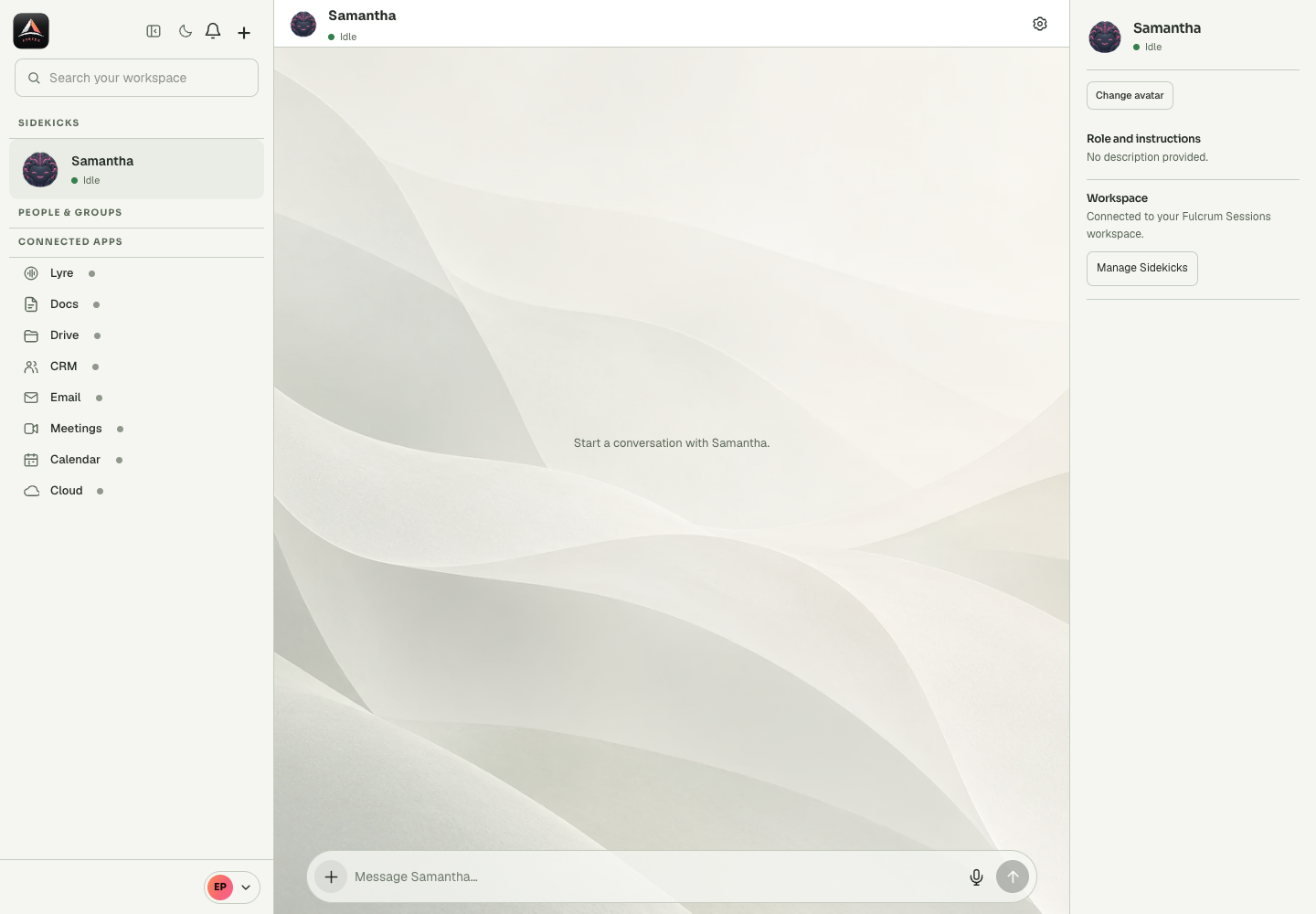
Choose the setting you mean
| What you want to change | Where to look | Scope |
|---|---|---|
| Default assistant, voice or chat background | Conversation settings | Default and voice can be account/service settings; background is this device |
| What an assistant can do | Tools permissions and app settings | Selected Sidekick and private/group context |
| Owner approval for an administrator | Profile → Administrator permissions | Workspace approval ceiling |
| People, invitations or member roles | Profile → Workspace members | Workspace membership |
| Shared group information and rules | Group info → Edit group | The selected group |
| Sounds, app alerts and notification volume | Notifications → Sounds & alerts | This device and browser permissions |
Open the visual tour of all Chat screenshots.
Start here
- Find your way around Cortex Chat
- Sign in to Cortex Chat with Fmail
- Understand your account and workspace context
- Connect your Sessions workspace
- Choose the right Sidekick for a task
- Write your first useful request
- Understand what gives a Sidekick access
- Choose a private chat or a group
- Check whether a task really finished
- Set up a practical first day in Chat
Manage Sidekicks
- Create a specialist Sidekick
- Write a clear Skills and job description
- Read a Sidekick runtime status
- Understand working status and typing indicators
- Set your default Sidekick
- Change or clear the default Sidekick
- Change a Sidekick avatar
- Restart the intended Sidekick
- Remove a Sidekick and understand transcript deletion
- Use reusable skill procedures with a Sidekick
Messages and files
- Send a text message
- Write a multi-line message without sending early
- Mention a group member or Sidekick
- Attach a supported file
- Drag and drop a file into Chat
- Review or remove an attachment before sending
- Ask a useful question about an attached document
- Record and send a voice message
- Play, pause and seek a voice message
- Understand delivery indicators and retry a failed send
People and groups
- Find the right person in People & groups
- Invite a person to a conversation
- Create a group conversation
- Join a group through an invitation
- Open group information and content
- Find shared media in a group
- Find a group file or shared link
- Add a Sidekick to a group
- Ask a Sidekick privately beside a conversation
- Start a video meeting from a group
Group settings
- Edit a group name and description
- Change a group photo
- Choose whether new members see earlier history
- Set a useful group welcome message
- Control group message and media permissions
- Control who can invite people and Sidekicks
- Create and share a group invite link
- Revoke a group invitation link
- Assign precise group administrator rights
- Choose between leaving and deleting a group
Connected apps
- Open a connected app beside your assistant
- Understand app connection and access states
- Open and work with Docs in Cortex Chat
- Explain what the open document means for a request
- Use Drive from Cortex Chat
- Use Email inside Cortex Chat
- Switch between signed-in email accounts
- Add or refresh an email account
- Use Calendar and Meetings from Chat
- Understand CRM and Cloud connections
Tools and permissions
- Review a Sidekick’s tool permissions
- Search tools by operation or category
- Distinguish read-only tools from tools that change data
- Select and save tool permissions
- Disable tool access using an explicit empty policy
- Resolve owner approval needed
- Separate private tool access from group tool access
- Set Email access: read, draft and send
- Repair a specific app connection
- Apply saved permissions to a running Sidekick
Voice conversations
- Choose live voice or a recorded message
- Activate voice for a Sidekick
- Choose or change a Sidekick voice
- Start a live conversation with your Sidekick
- Mute the microphone or end a voice conversation
- Understand and change Peptalk
- Enable voice audio when the browser blocks playback
- Resolve a voice readiness or credits warning
- Open the full voice profile in Lyre
- Understand listening, thinking and speaking states
Account and workspace
Read the complete Wallet and billing guide, with screenshots.
- Use the account menu and My account
- Read the Wallet balance shown in your profile
- Open the intended Add credits flow
- Open workspace Administrator permissions
- Set an administrator’s tool ceiling
- Review workspace members and roles
- Send or revoke a workspace invitation
- Change a member role, suspend or reactivate access
- Review recent workspace actions
- Sign out of Chat or Fmail deliberately
Device and recovery
- Switch between light and dark mode
- Choose a conversation background
- Upload or remove a custom chat background
- Dock, pop out or minimise Sidekick chat
- Resize a docked or floating chat panel
- Use the notification center
- Set notification sounds, volume and alerts
- Use Cortex Chat on a phone or install it
- Read offline history and recover connectivity
- Collect useful evidence for a Chat problem
Last updated