
Understand your account and workspace context
Understand your account and workspace context in Cortex Chat: practical steps, setting explanations, result checks and troubleshooting.
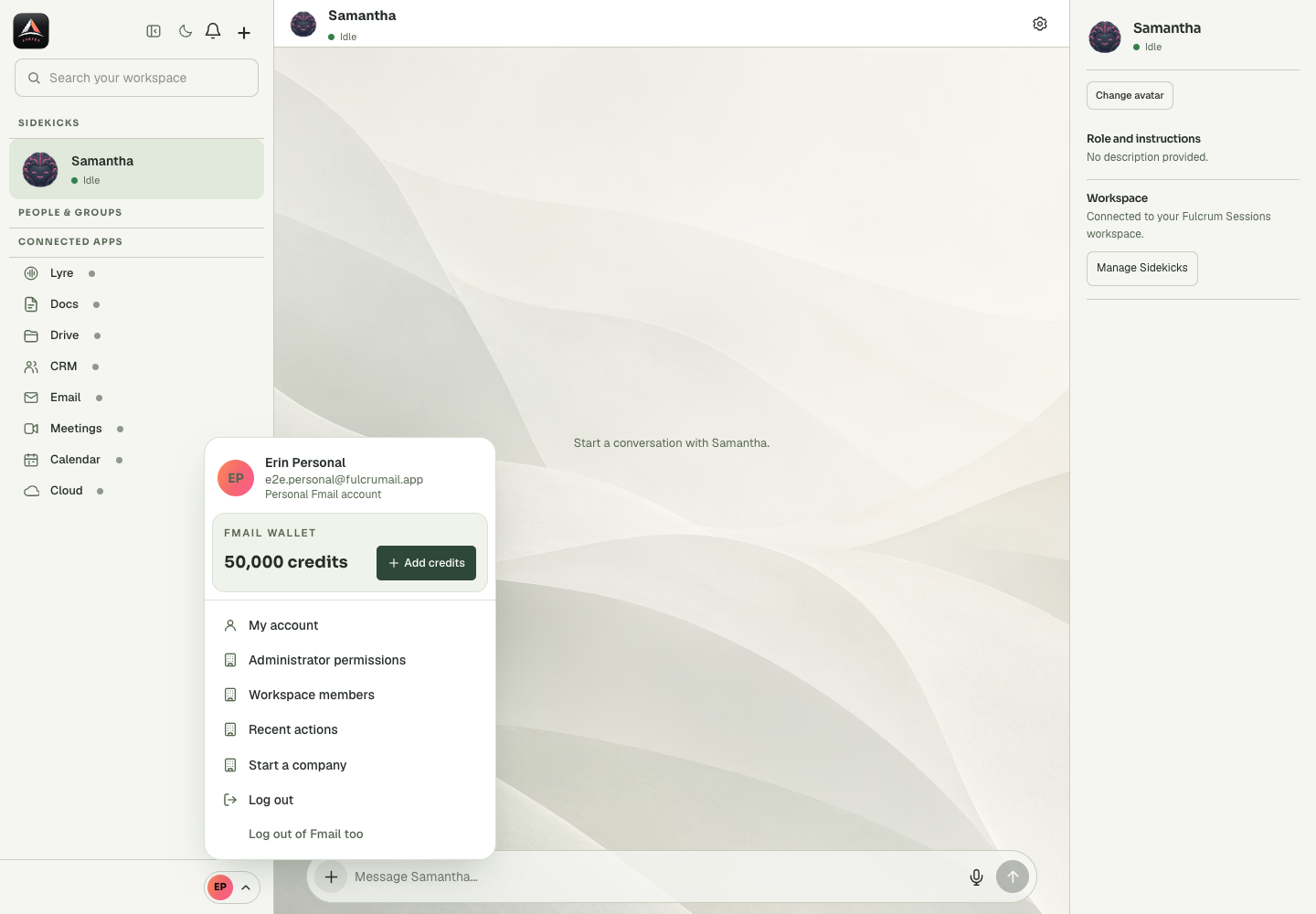
One person can have a personal identity and company workspace access. Account and workspace context affect conversations, app access and billing. A Sidekick with a familiar name in another context is not proof that it has the same history or permissions.
Before you start
Check three separate layers: the identity signed in through Fmail, the Sessions workspace supplying the Sidekick, and the app connection supplying the requested data. One working layer does not prove the others are ready. Start with a harmless read or a draft before asking for an external change. A message to an assistant can contain instructions and source material, but permissions come from the saved account and tool settings. When an operation is unclear, describe the required outcome and ask the assistant to identify the missing stage instead of changing several settings at once.
Step-by-step
- Open the account control and read the identity shown beneath your name.
- Check whether the displayed context is personal or a company workspace.
- Before changing permissions or sending a message, confirm that the relevant conversation belongs to this context.
What the settings mean
| Control or state | Meaning |
|---|---|
| Account | Who is signed in and which personal or company context is being used. |
| Sidekick | The selected assistant and its runtime availability. |
| Application | The connected service and the account it uses. |
| Outcome | The artifact or destination record that establishes completion. |
Check the result
The account, workspace and target conversation agree with the task you are about to perform.
If it does not work
When records appear missing, check context before creating replacements. The wrong workspace can look like an empty or disconnected installation.
Continue with the right context
Return to the Cortex Chat guide index to choose another task. Keep the current account, assistant and conversation in view when following the next guide. To use the product, open Cortex Chat.
Last updated