
Create a booking page
Publish a Fulcrum booking page so people can book time with you. Set the meeting length, location, weekly hours, date overrides, buffers and the calendars it uses.
A booking page is a public link where people choose a free time with you. Guests only see times when you're available. The details of your other events stay private. Each booking is added to a calendar you choose and comes with its own Fulcrum Meeting link if you want one. A booking page is a type of meeting you offer, such as a 30-minute intro call. You can have several, each with its own length, hours and link.
Open booking pages
In Calendar, select Booking pages. The page is headed Your time, on your terms. and has three tabs:
- Booking pages: the pages you've made, published or draft.
- Connected calendars: your Fulcrum calendars and any Google or Microsoft accounts. See Import and connect calendars.
- Bookings: the bookings guests have made. See Manage bookings.
Create and publish a booking page
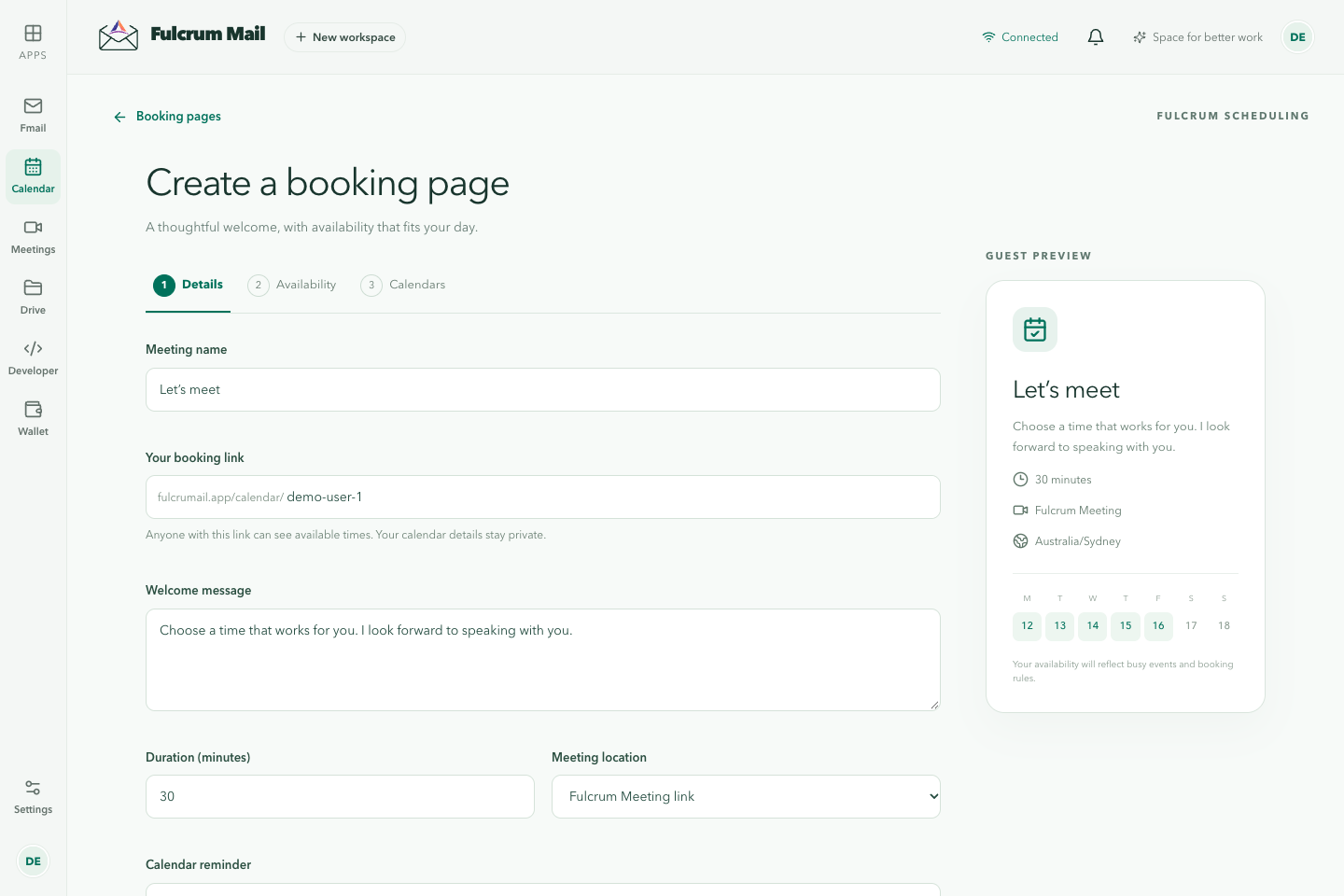
The editor has three steps: Details, Availability and Calendars. A GUEST PREVIEW panel beside the form shows how the page will look as you go.
- Select Create booking page. On your first visit the button is Create your first booking page.
- In Details, enter a Meeting name and choose Your booking link. The link is the last part of
fulcrumail.app/calendar/and uses lowercase letters, numbers and hyphens. Add a Welcome message and set the Duration (minutes). - Choose the Meeting location. Fulcrum Meeting link gives every booking its own video meeting. Address or custom link lets you enter a place or another meeting link. Pick a Calendar reminder, then select Continue.
- In Availability, set Your availability time zone and your Weekly hours. Guests see these times in their own time zone. Select Continue.
- In Calendars, tick the calendars under Check these calendars for conflicts, then choose where new bookings go under Add bookings to.
- Select Publish booking page. You can select Save draft at any step to finish later.
Once it's live, Fulcrum confirms with Your booking page is live. Copy the link and share it in your email signature, on your website, or in replies to new enquiries.
Set your hours
Weekly hours
Tick a day to make it available. It starts at 09:00 to 17:00, and you can change the times. Use the add-hours button for a second window on the same day, such as a morning and an afternoon block. Each day can have up to eight windows, and they can't overlap. Unticked days show as Unavailable.
Date overrides
Use Date overrides to take a day off or offer different hours on one date. Select Add a date, pick the date, then tick Day off or set the hours for that day.
Breathing room
Under Give yourself breathing room:
| Setting | What it does | Default |
|---|---|---|
| Buffer before (minutes) | Keeps free time before each booking. | 0 |
| Buffer after (minutes) | Keeps free time after each booking. | 0 |
| Minimum notice (minutes) | Stops people booking at the last minute. | 120 |
| Booking window (days) | How far ahead people can book. | 60 |
| Start times every (minutes) | How often a slot can start, for example every 15 minutes. | 15 |
A new page starts as a 30-minute Fulcrum Meeting, Monday to Friday, 09:00 to 17:00, with a reminder 15 minutes before.
Choose calendars
- Check these calendars for conflicts: any busy time in these calendars can't be booked. You can tick both Fulcrum and connected calendars.
- Add bookings to: the one calendar that receives each new booking and sends the invitation. This calendar is always checked for conflicts too.
To use a Google or Microsoft calendar, save the page as a draft, connect the account on the Connected calendars tab, then come back and finish.
Share, edit or unpublish
Each page on the Booking pages tab shows whether it's Published or Draft, its length, its location and its link. Published pages have buttons to copy the link, open the page and Unpublish. Select Edit to change any setting. To put an unpublished page back online, edit it and select Publish booking page again.
You can have up to 30 booking pages. Workspace guests can't publish booking pages. Guests always confirm their email address before a booking is confirmed, and every confirmation includes a link to cancel or reschedule.
Booking pages without a Fulcrum mailbox
You don't need a Fulcrum Mail address to use booking pages. Go to Fulcrum Calendar booking pages sign-in and choose Continue with Google or Continue with Microsoft. If you're new, Fulcrum asks you to finish creating a calendar account (no mailbox or domain setup needed) and to verify your mobile number and email. Calendar-only accounts include Calendar, Meetings and Wallet. Connecting your Google or Microsoft calendar is a separate step, done on the Connected calendars tab.
If you already have a Fulcrum account with the same email address, sign in the usual way. Then link Google or Microsoft from Connected calendars with Use this provider to sign in.
Booking pages fit alongside the other ways Fulcrum captures new enquiries. Examples are a lead form on your website and a Lyre voice agent that answers the phone.
Worked example: a 30-minute introduction
Set a 30-minute duration, business-day hours in your own time zone, and enough notice to prepare. Add a buffer if you need time between meetings. Choose every calendar that should block availability and one destination calendar. Publish, then open the public link in a separate signed-out window.
When no slots appear
Check weekly hours, date overrides, minimum notice, booking horizon, buffers and conflicts across every selected calendar. A free period must fit the whole meeting and its buffers. A disconnected provider can also prevent reliable availability. Test a date with known free time instead of changing all settings at once.
Last updated