
Create a group conversation
Create a group conversation in Cortex Chat: practical steps, setting explanations, result checks and troubleshooting.
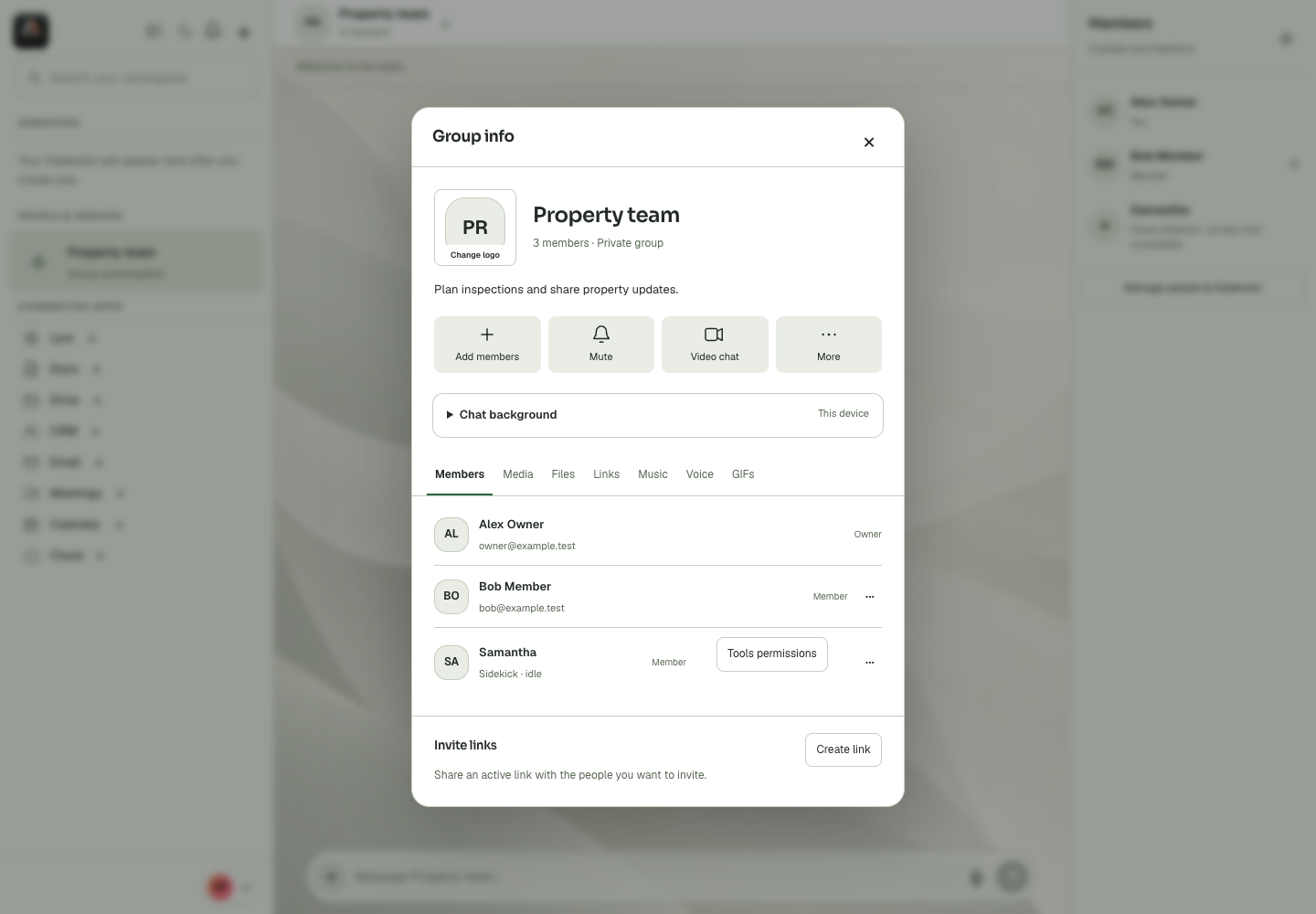
A group brings several people into a shared conversation. Its name and participant selection set the initial context, while later group settings control history, invitations and member actions.
Before you start
A direct conversation, a group and the private Ask a Sidekick panel are different audiences. Joining a group does not make someone a workspace administrator, and sharing an external file in a group does not override that file’s own access rules. Use names, membership and account context to confirm the intended conversation before sending. When inviting someone, distinguish an invitation that was created from one that was accepted. A public-looking display name is not enough to resolve an ambiguous recipient. Where a Sidekick helps draft a group response, decide separately whether the proposed text should actually be posted to the shared conversation.
Step-by-step
- Choose Create group from Add to workspace.
- Enter the group details required by the dialog and select the intended people.
- Review the selected members and create the group, then inspect its heading and participants.
What the settings mean
| Control or state | Meaning |
|---|---|
| Direct conversation | A conversation with the selected person. |
| Group | A shared thread governed by its membership and settings. |
| Private assistance | The separate Ask a Sidekick surface. |
| External link | A destination that retains its own access and expiry rules. |
Check the result
The new group has the intended identity and membership.
If it does not work
If creation fails, inspect the error and current group list before resubmitting. A repeated submission can create confusing duplicate groups if the first result was uncertain.
Continue with the right context
Return to the Cortex Chat guide index to choose another task. Keep the current account, assistant and conversation in view when following the next guide. To use the product, open Cortex Chat.
- Find the right person in People & groups
- Invite a person to a conversation
- Join a group through an invitation
Last updated