
Create a specialist Sidekick
Create a specialist Sidekick in Cortex Chat: practical steps, setting explanations, result checks and troubleshooting.
The create form separates Name from Skills and job. The latter describes the job and operating rules; it is not an automatic installation of every skill mentioned in the text. The runtime must confirm the new assistant before it can be treated as ready.
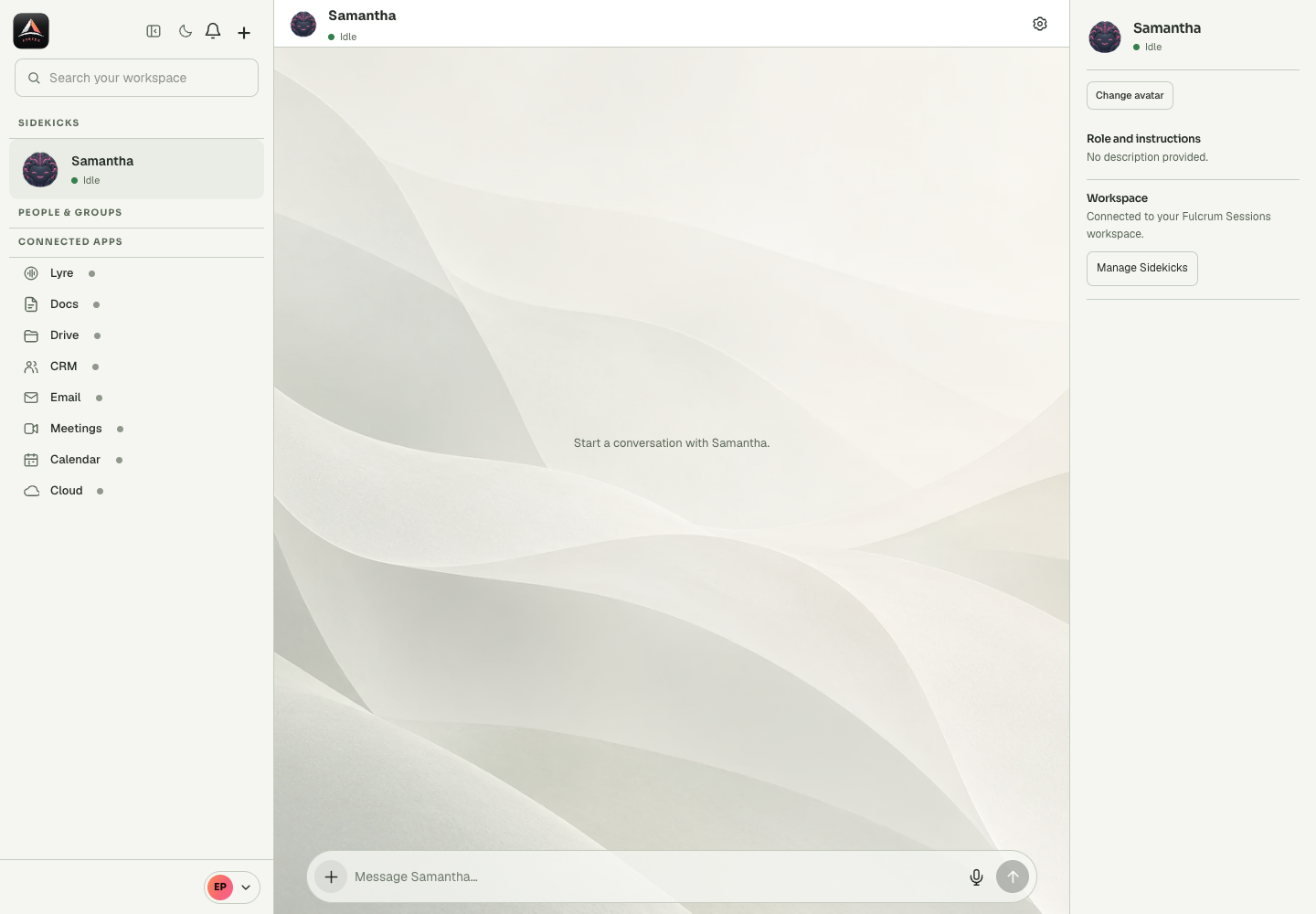
Before you start
The Sidekick identity, role description, runtime and tool policy describe different things. Name and artwork identify the assistant. Skills and job tell it how to approach work. Sessions determines whether its runtime is available, and saved tool settings determine the operations it can use. An assistant can therefore have a clear job but still be offline or lack a required app permission. Diagnose the specific layer before restarting or replacing it. In particular, removal is not a harmless refresh: the confirmation explains that the transcript is permanently deleted. Preserve the work you need through an appropriate authorised artifact before a destructive action.
Step-by-step
- Open Add to workspace and choose Add Sidekick, or use Manage Sidekicks.
- Enter a Name of up to 60 characters and a Skills and job description of up to 2,000 characters.
- Select Create Sidekick and keep the panel open while Sessions prepares and confirms its status.
What the settings mean
| Control or state | Meaning |
|---|---|
| Role | Instructions and specialisation, not automatic credentials. |
| Runtime | Starting, working, restarting and other current availability signals. |
| Default | An account preference used for an implicit assistant selection. |
| Tool policy | Saved allowed operations for the relevant context. |
Check the result
The new Sidekick appears once, with the intended job description and a confirmed runtime state.
If it does not work
If creation times out, refresh status and check for an existing new assistant before creating another. A pending preparation message is not an invitation to submit repeatedly.
Continue with the right context
Return to the Cortex Chat guide index to choose another task. Keep the current account, assistant and conversation in view when following the next guide. To use the product, open Cortex Chat.
- Write a clear Skills and job description
- Read a Sidekick runtime status
- Understand working status and typing indicators
Last updated