
Open a connected app beside your assistant
Open a connected app beside your assistant in Cortex Chat: practical steps, setting explanations, result checks and troubleshooting.
Connected Apps separates opening an application from opening its connection settings. This lets you use the app and the Sidekick together, but seeing the application does not mean the assistant has permission to use every tool in it.
Before you start
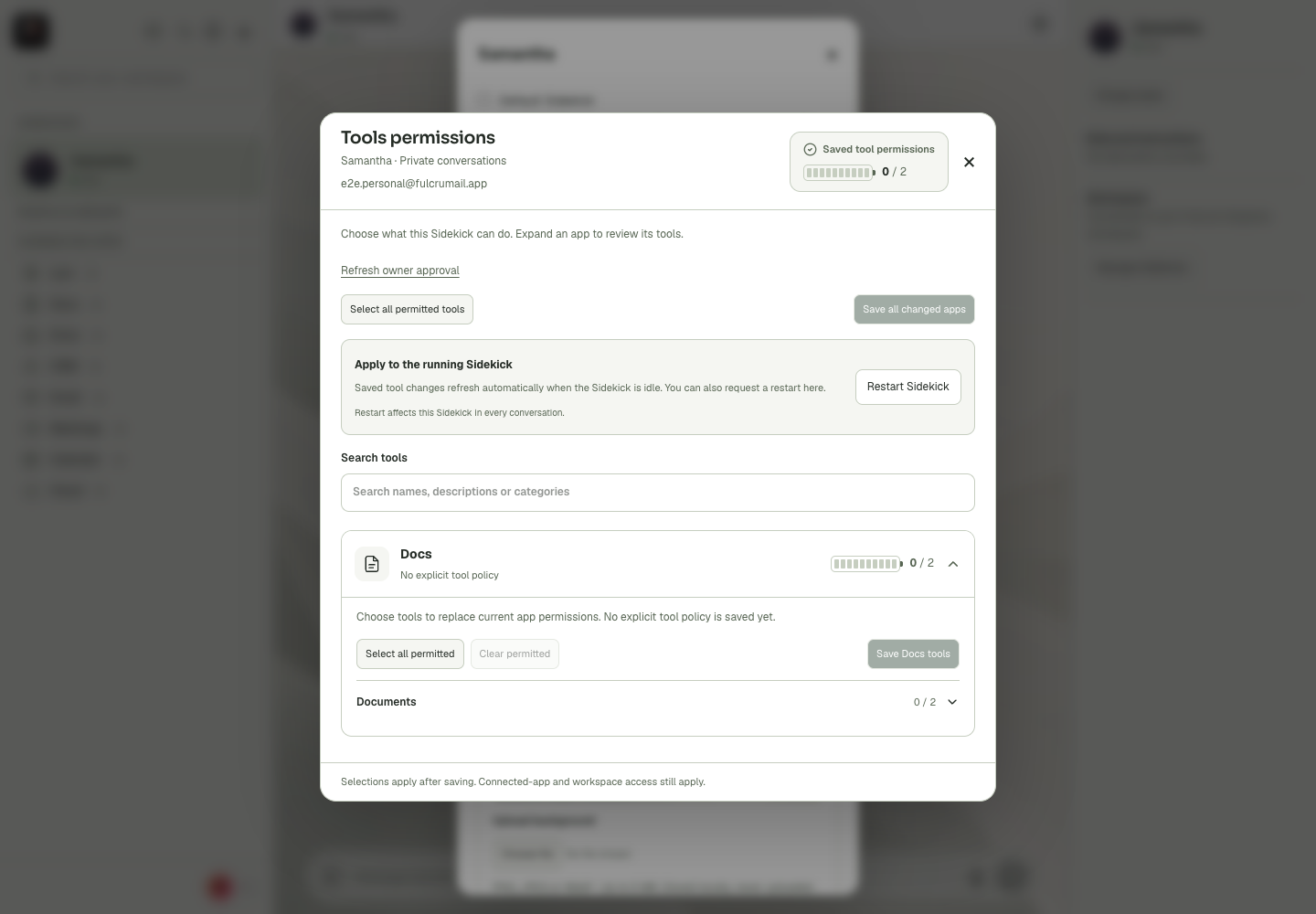
An app name opens the product surface, while its settings control shows connection and Sidekick access. The product may be visible to you even when the assistant has no permitted tool for the action you want. Read the account identity, phase and explicit guidance before reconnecting. Some setup flows need tools saved first and account access saved afterwards. For embedded apps, verify the account and open record rather than assuming the context from another tab. If an action changes an external record, inspect that record afterwards; a completed app load or a confident assistant reply is only part of the evidence.
Step-by-step
- Find the intended item under Connected Apps.
- Select the app name to open its workspace surface.
- Check the selected Sidekick and account, then use the app-settings control separately when access needs review.
What the settings mean
| Control or state | Meaning |
|---|---|
| App surface | The interface you can open and use. |
| Connection | The service/account link and its current state. |
| Account access | The read/draft/write/send allowance supported by that app. |
| Tool selection | The particular operations saved for the assistant. |
Check the result
The intended app opens with an identifiable account and assistant context.
If it does not work
If the app takes too long to load, use the displayed retry path. Repeatedly opening several copies does not repair an unavailable embedded service.
Continue with the right context
Return to the Cortex Chat guide index to choose another task. Keep the current account, assistant and conversation in view when following the next guide. To use the product, open Cortex Chat.
- Understand app connection and access states
- Open and work with Docs in Cortex Chat
- Explain what the open document means for a request
Last updated