
Review recent workspace actions
Review recent workspace actions in Cortex Chat: practical steps, setting explanations, result checks and troubleshooting.
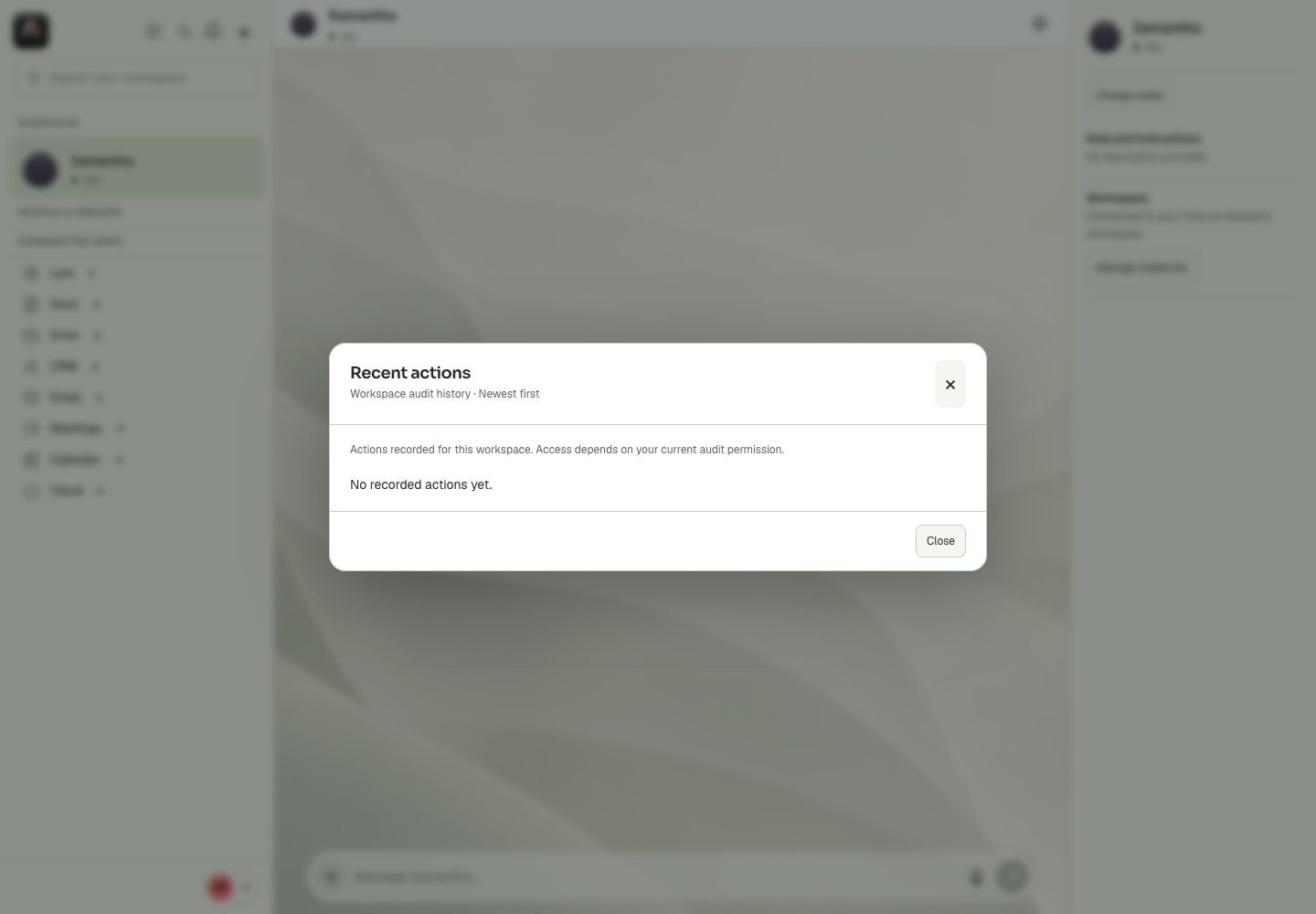
Recent actions is an audit-oriented view for workspace operations, separate from the notification bell and from a conversation transcript. It helps identify what changed and what the service actually recorded.
Before you start
The profile menu links account identity, Wallet information and workspace administration. Changes to a member role or an administrator ceiling affect shared access; they are not conversation appearance settings. Read the selected person’s email and the workspace context before saving. Member invitations, group membership and Sidekick tool access are different layers, with separate confirmation and recovery paths. A stale-data message means you should reload current information before a new mutation. For financial work, the selected Wallet account and its transaction history matter more than an isolated balance summary. Never include account tokens, recovery information or payment data in a public support screenshot.
Step-by-step
- Open the account control and select Recent actions when available.
- Inspect the relevant entries and their time/context.
- Use Load older actions if needed, then compare the recorded event with the change you are investigating.
What the settings mean
| Control or state | Meaning |
|---|---|
| My account | Personal account settings and identity. |
| Workspace members | People, roles and invitation/status management. |
| Administrator permissions | Owner approval for management and tool delegation. |
| Recent actions | Recorded workspace operations, separate from conversation history. |
Check the result
You have a relevant action record or a clearly stated absence of evidence.
If it does not work
An absent entry in the currently loaded page is not proof the action never happened. Check time range, pagination and the correct workspace before concluding.
Continue with the right context
Return to the Cortex Chat guide index to choose another task. Keep the current account, assistant and conversation in view when following the next guide. To use the product, open Cortex Chat.
- Use the account menu and My account
- Read the Wallet balance shown in your profile
- Open the intended Add credits flow
Last updated