
Choose a conversation background
Choose a conversation background in Cortex Chat: practical steps, setting explanations, result checks and troubleshooting.
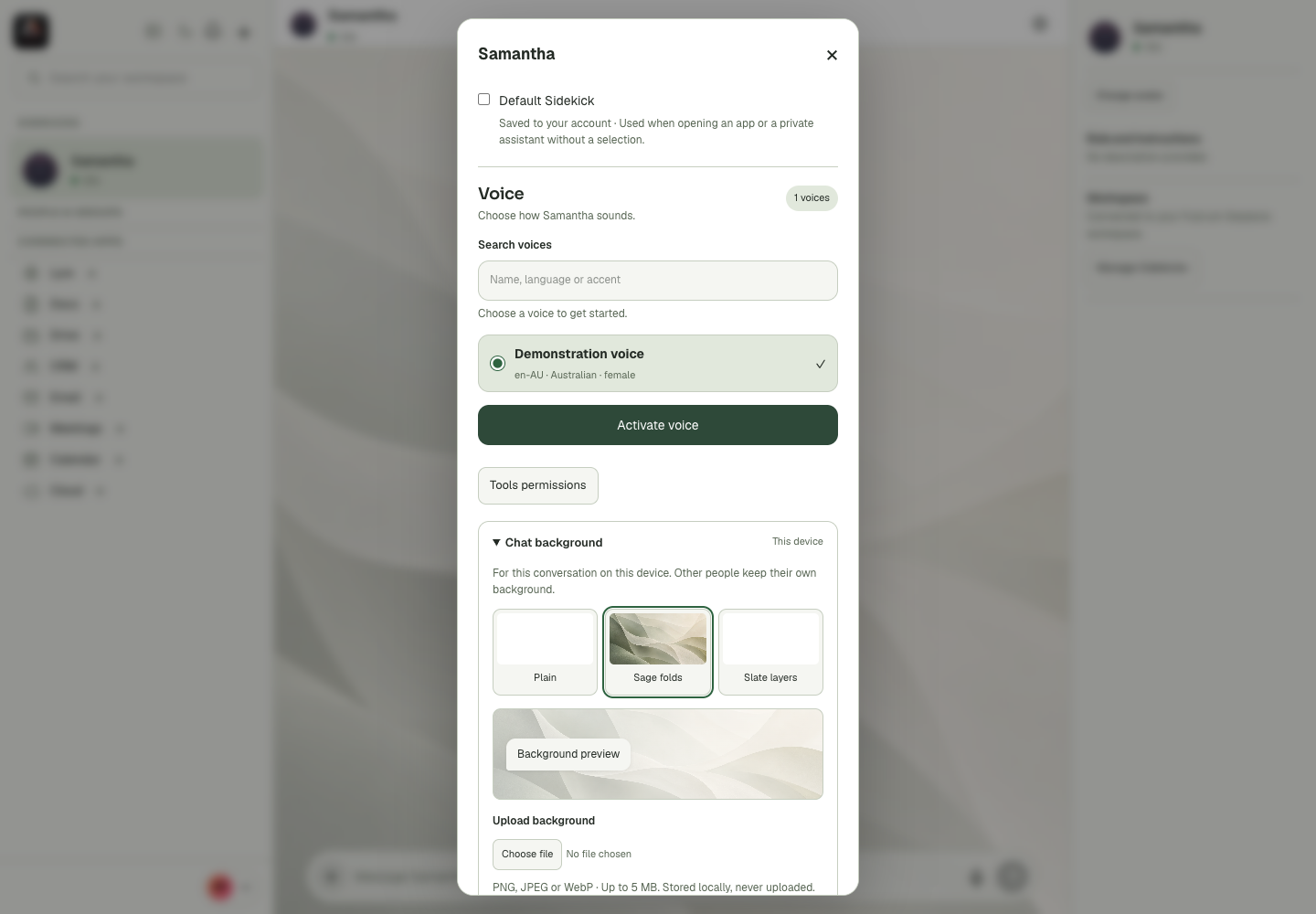
Chat background is explicitly marked This device. Plain, Sage folds and Slate layers change the current conversation’s canvas locally; other participants keep their own background. This is different from changing a shared group photo.
Before you start
Appearance, layout, notification sounds and some cached history are device/browser state. The interface explicitly marks a conversation background as This device and distinguishes an account-saved default Sidekick from a cached value. Another participant or device may therefore look different without anything being broken. A cached conversation is useful while reconnecting but does not prove that identity is currently verified or that a new message reached the server. Preserve useful drafts before clearing browser storage. When troubleshooting, distinguish browser permission, local preference, network availability and external service state instead of treating them as one setting.
Step-by-step
- Open the conversation settings and expand Chat background.
- Choose Plain, Sage folds or Slate layers and inspect Background preview.
- Wait for Background saved on this device, then reopen the same conversation to verify it.
What the settings mean
| Control or state | Meaning |
|---|---|
| Device preference | A setting whose effect is local to this browser or device. |
| Account preference | A value confirmed as saved to the signed-in account. |
| Cached history | Previously stored conversation content, not a new server result. |
| Browser permission | Microphone, sound or notification authority outside the app switch. |
Check the result
The intended conversation uses the chosen background on this device.
If it does not work
If it does not save, check browser storage and the displayed error. A local background preference should not be expected to synchronise to everyone in a group.
Continue with the right context
Return to the Cortex Chat guide index to choose another task. Keep the current account, assistant and conversation in view when following the next guide. To use the product, open Cortex Chat.
- Switch between light and dark mode
- Upload or remove a custom chat background
- Dock, pop out or minimise Sidekick chat
Last updated