
Set Email access: read, draft and send
Set Email access: read, draft and send in Cortex Chat: practical steps, setting explanations, result checks and troubleshooting.
Email account access distinguishes Read only, Read and draft and a separate Allow sending email control. Tool selections are constrained by that account level. Allowing draft creation is not the same as allowing sends from your account.
Before you start
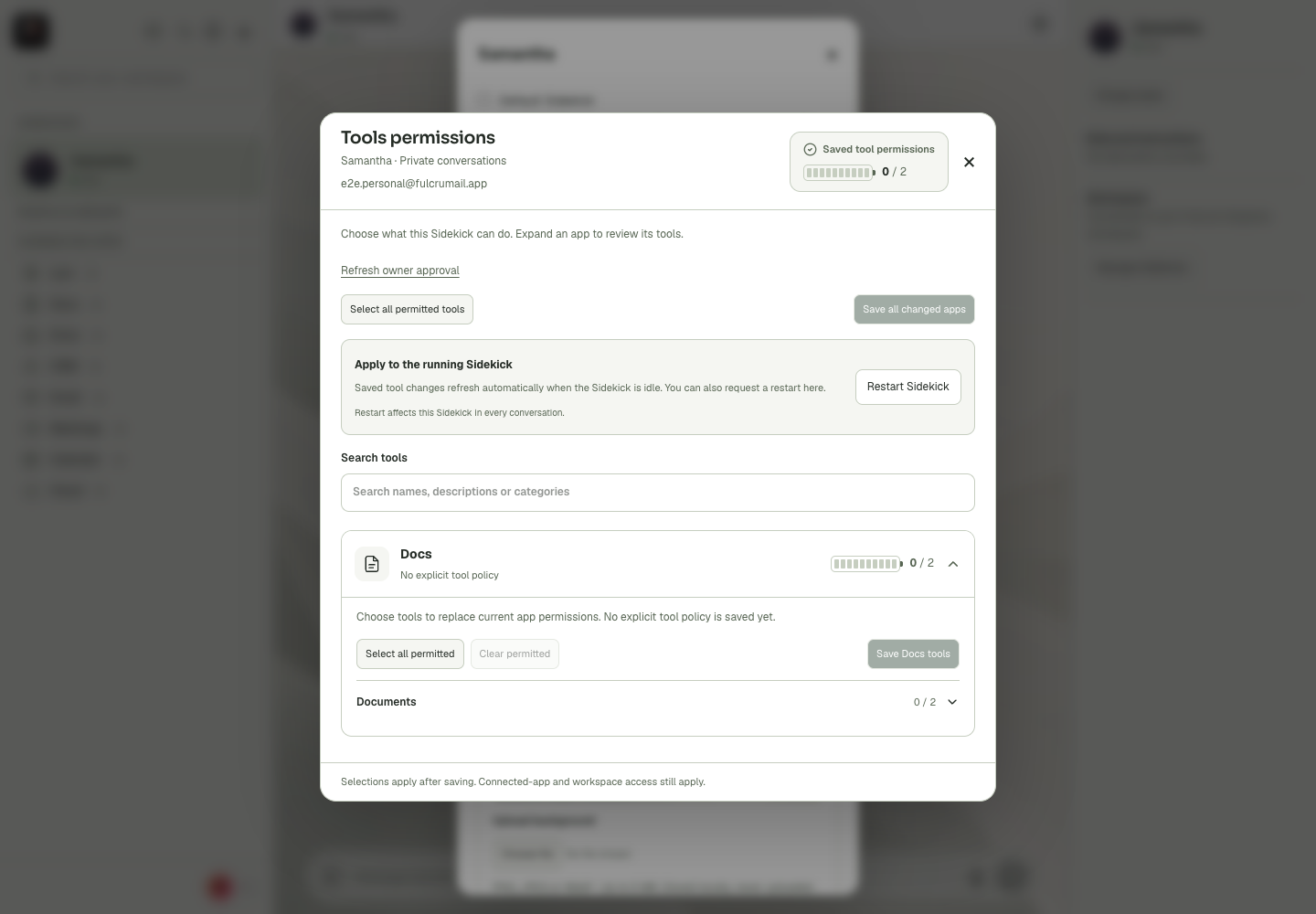
Effective tool access depends on the connected account, workspace authority, the owner’s approval ceiling and the Sidekick’s saved context-specific policy. These settings are deliberately separate. A checkbox can represent an unsaved choice, while the running assistant may still be using its previously saved tools until refresh. Review the description and read/write annotation rather than granting everything in response to one error. Private and group policies can differ even for the same assistant. If the interface reports owner approval needed, follow its exact account/context/application guidance. Restarting cannot manufacture missing approval and can affect the Sidekick in other conversations.
Step-by-step
- Open Email settings for the intended Sidekick and mailbox.
- Choose the account access level, enabling Allow sending email only when that authority is intended.
- Review and save the matching Email tools, then save account access as the dialog directs.
What the settings mean
| Control or state | Meaning |
|---|---|
| Owner ceiling | The maximum tools an administrator may delegate. |
| Saved policy | The actual operations selected for this Sidekick/context. |
| Unsaved selection | Draft choices that have not yet taken effect. |
| Runtime refresh | How the running assistant receives a saved policy change. |
Check the result
The assistant can perform only the intended email operations from the intended account.
If it does not work
If a send tool is unavailable, inspect both the send allowance and owner-approved tool ceiling. Do not label a saved draft as a sent message.
Continue with the right context
Return to the Cortex Chat guide index to choose another task. Keep the current account, assistant and conversation in view when following the next guide. To use the product, open Cortex Chat.
- Review a Sidekick’s tool permissions
- Search tools by operation or category
- Distinguish read-only tools from tools that change data
Last updated