
Create and collaborate in Fulcrum Docs
Create documents from templates in Fulcrum Docs, format and import content, collaborate with colleagues, share access and check saved versions.
Fulcrum Docs is the document editor in the Fulcrum workspace. Native documents are saved in Drive as .fdoc files. Use it for proposals, plans, notes and other written work. It is separate from this documentation website.
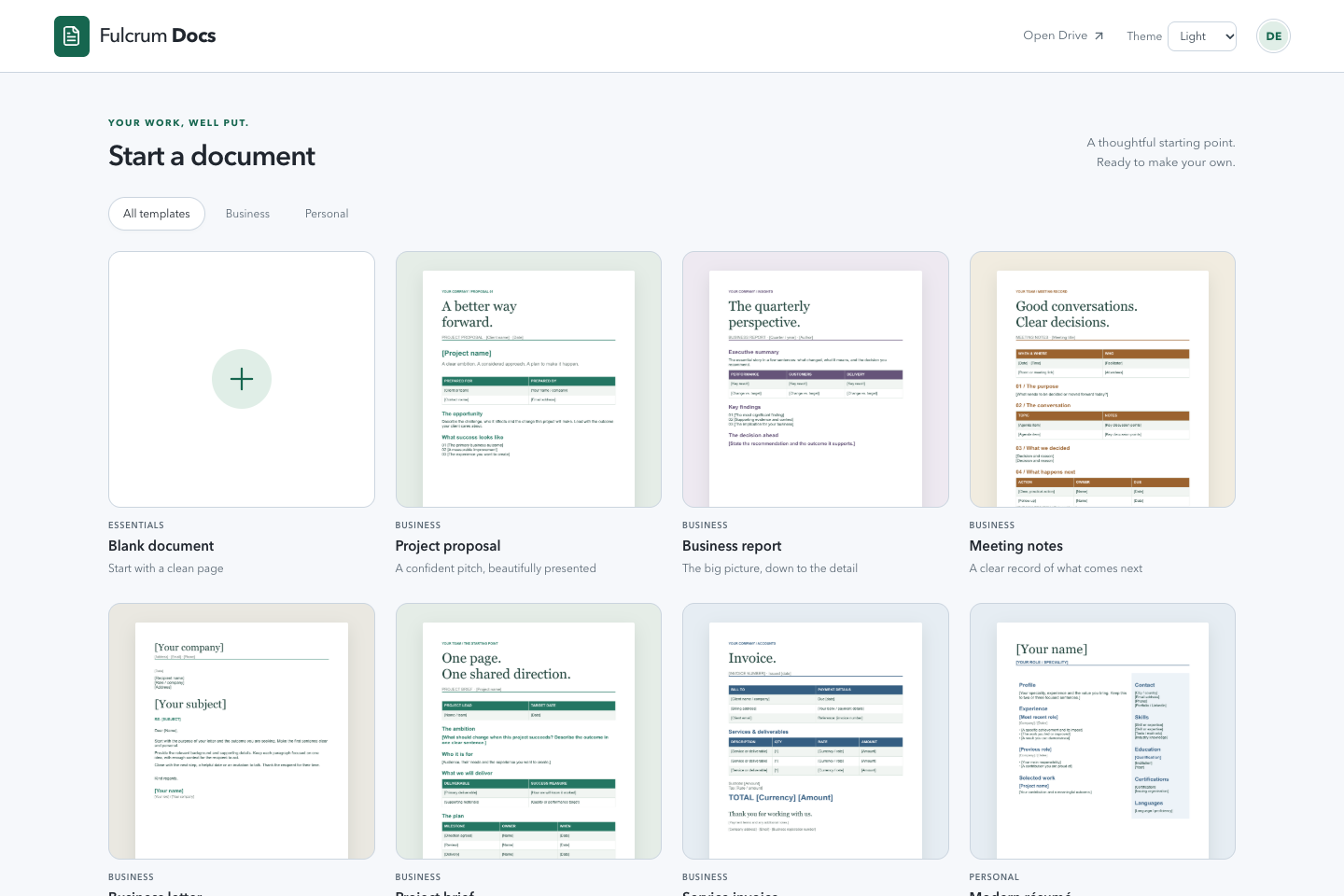
Start a document
- Open Docs from the Fulcrum apps directory.
- Check the active account and workspace.
- Under Start a document, choose Blank document or a template. Use All templates, Business or Personal to narrow the choices.
- Change Document title to something recognisable and write your content.
- Wait for Saved in Drive before closing or switching documents.
Find and reopen work
The home screen lists Recent documents, newest edits first. Search by document name. Shared with me shows documents shared with your Fulcrum account. Open Drive opens file management for the same account context.
Write and format
The editor provides text styles, bold, italic, underline, lists, task lists, alignment, colours, links, tables and images. Use headings to structure a long document. Undo and redo help recover recent edits. Zoom changes the editing view; it does not change the document's content.
Page settings include paper layout, margins, header and footer controls. Check the document in print preview before distributing a formatted copy. Imported Word content can render differently from its source, especially with complex layout; inspect tables, images and page breaks.
Share a document
- Open Share.
- Under Add a Fulcrum account, enter the email of an existing account.
- Choose Editor, Commenter or Viewer, then select Add.
- Review People with access. Copy the document link and send it to the intended person.
The link is restricted to people with access. Copying a link does not make a document public. Inherited access can come from Drive; remove the underlying grant if someone still has access after a direct document grant is removed.
Work together
Other participants appear in the document and their cursor activity can show while editing. Use comments for questions and review discussion. Keep connection and save status visible; if the connection drops, leave the document open while waiting for pending edits to sync.
History and recovery
Use the history panel to inspect saved versions. Review the version and confirm the effect before restoring older content. Do not use a browser refresh as the first response to an unsaved-change warning. Keep the current document open and recover connectivity or copy important unsaved text into a safe local file.
Troubleshooting
- Cannot find a document: check account, workspace, search and Shared with me.
- Read-only editor: check whether you have Viewer or Commenter access.
- Template fails: retry once connectivity returns; confirm a new document was created before creating another.
- Saving or reconnecting: wait for confirmation; a visible edit does not prove it reached Drive.
Last updated