
Drag and drop a file into Chat
Drag and drop a file into Chat in Cortex Chat: practical steps, setting explanations, result checks and troubleshooting.
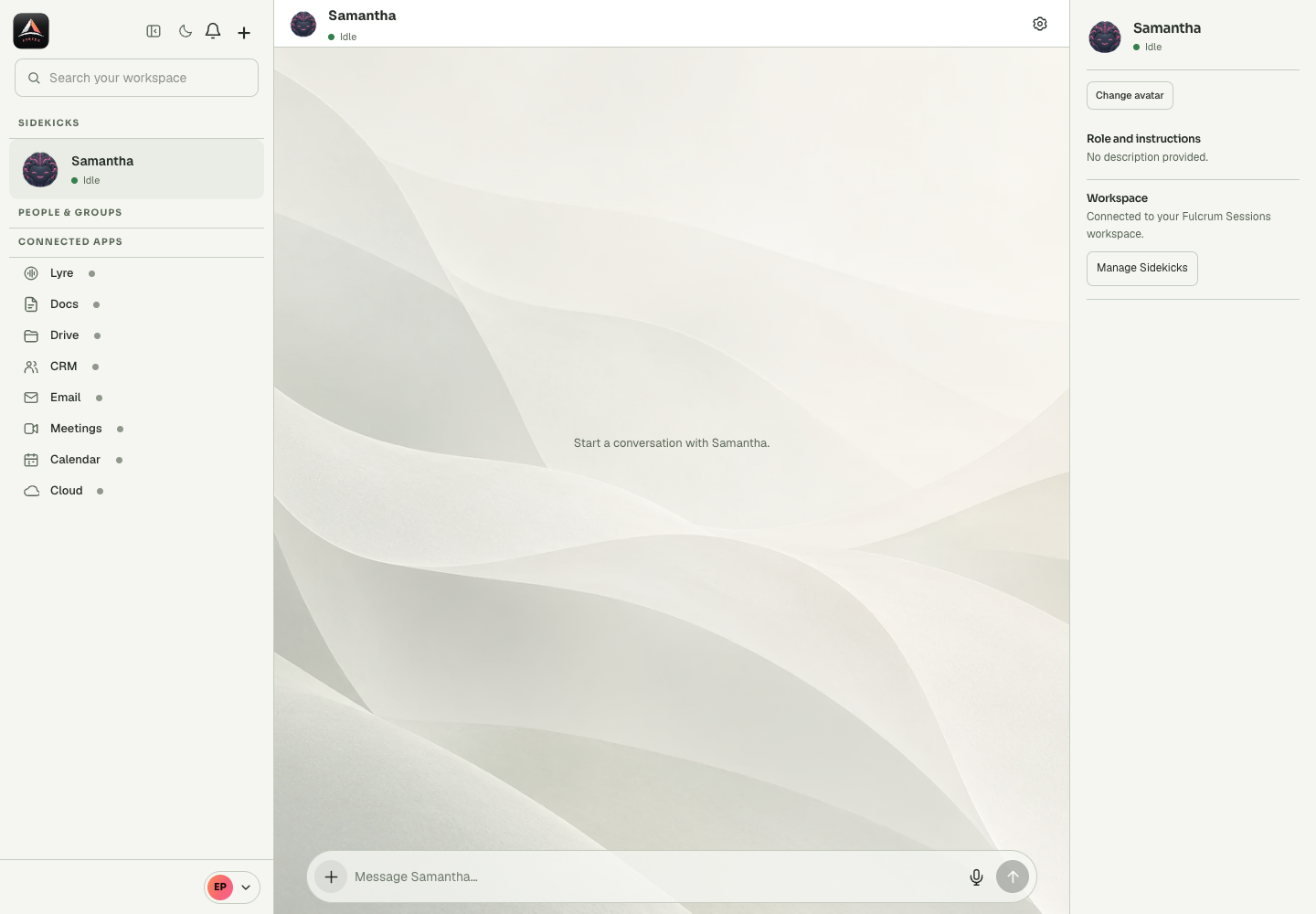
The drop target associates the pending attachment with a conversation. This is convenient but makes it important to confirm the active panel before dropping. Folders and multi-file drops are not the same as one supported attachment.
Before you start
The active composer determines where text, mentions and attachments will be sent. A private assistant panel can sit beside a shared conversation, so check the heading as well as the visible text. Inspect the file or recording before sending it; a local preview is not a completed upload. Chat validates a single attachment and rejects empty, oversized or unsupported files. Receipt state describes the message transport, not the success of a task requested inside it. If the result is uncertain, inspect the existing conversation and any external destination before retrying. This is especially important when a message asks the assistant to send, book or create something.
Step-by-step
- Open the intended conversation or assistant panel.
- Drag a single supported file over its drop target and drop it.
- Read the preview and any attachment notice before sending.
What the settings mean
| Control or state | Meaning |
|---|---|
| Composer | The current destination for text and pending media. |
| Preview | Content selected locally and still awaiting the send action. |
| Receipt | Sending, failed, sent, delivered or read information. |
| Task result | The separate artifact or external action requested in the message. |
Check the result
The file preview belongs to the intended composer and no unrelated conversation receives it.
If it does not work
If nothing is attached, inspect the notice for a folder, multiple files, unsupported format or size error. The drop itself does not mean a message was sent.
Continue with the right context
Return to the Cortex Chat guide index to choose another task. Keep the current account, assistant and conversation in view when following the next guide. To use the product, open Cortex Chat.
- Send a text message
- Write a multi-line message without sending early
- Mention a group member or Sidekick
Last updated