
Use Fulcrum Wallet from Cortex Chat
Understand Fulcrum Wallet from Cortex Chat: account balance, Add credits, subscriptions, top-ups, connected apps, credit lots, holds and transaction history.
Fulcrum Wallet holds the credit used by connected Fulcrum services. Cortex Chat shows a compact balance in the account control; the full Wallet provides the subscription, top-up, credit-lot and transaction views. Start by checking whose account or workspace is paying. A familiar balance is not enough to identify the billing context.
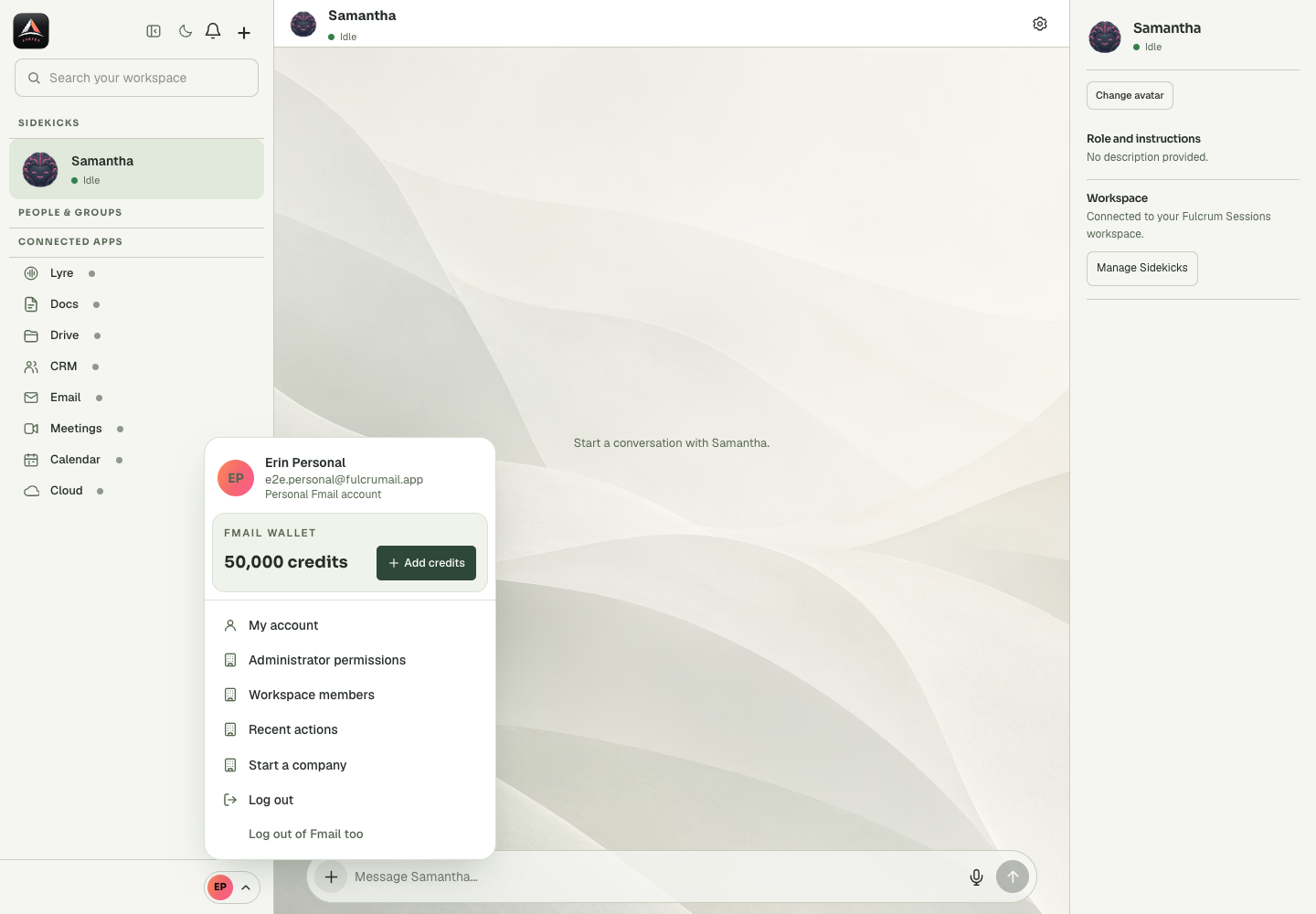
Open the correct Wallet
- In Cortex Chat, open the account control and read your identity and personal/company context.
- Find Fmail wallet and read the balance and any account-state note. Balance unavailable means the amount did not load; it does not mean zero credit.
- Select Add credits when you intend to open the funding flow. In Fulcrum Mail, you can also open Wallet from the app rail.
- Check the full Wallet account before selecting a subscription or top-up. Do not complete checkout in a different account just because it is already signed in.
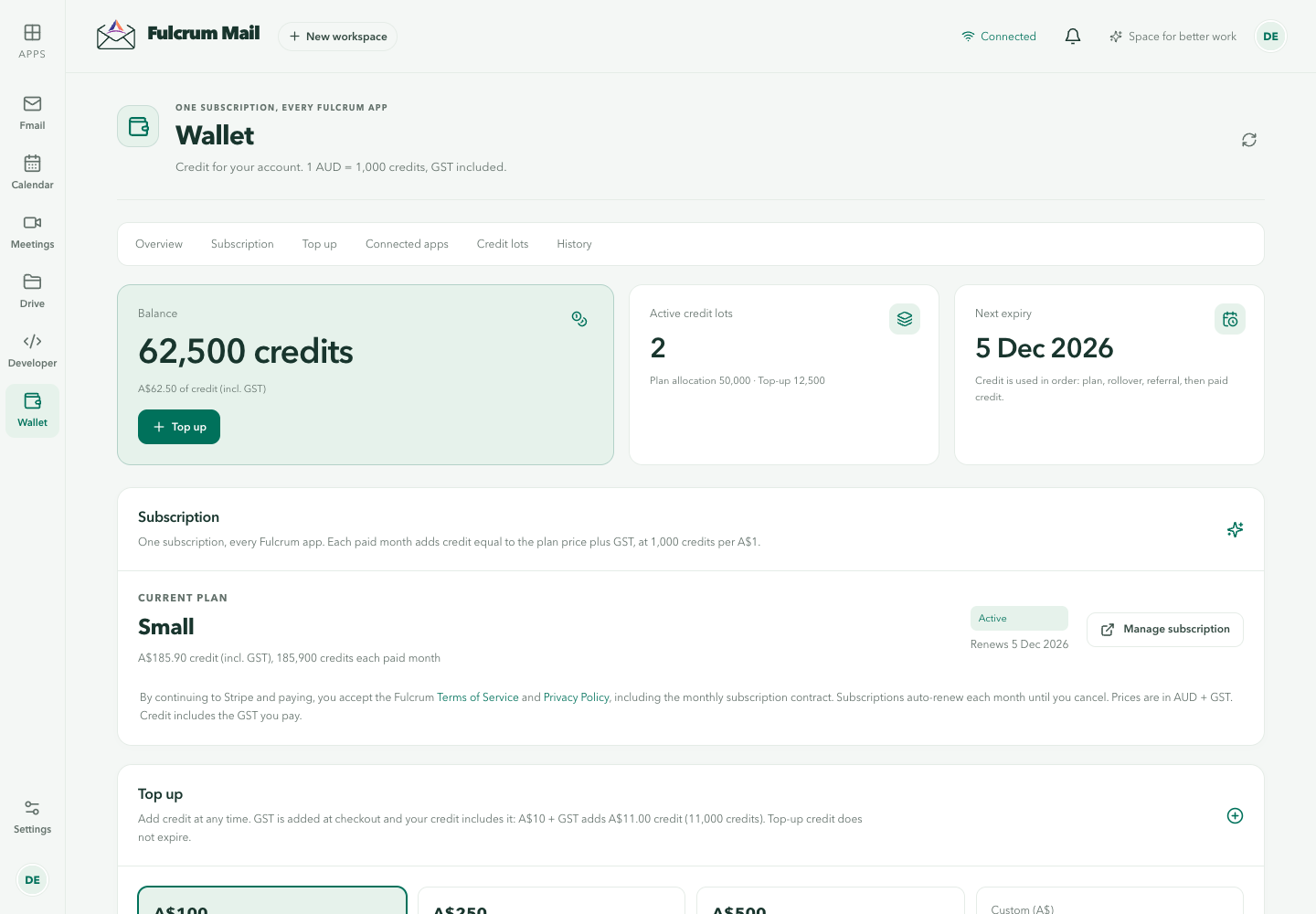
Understand the balance
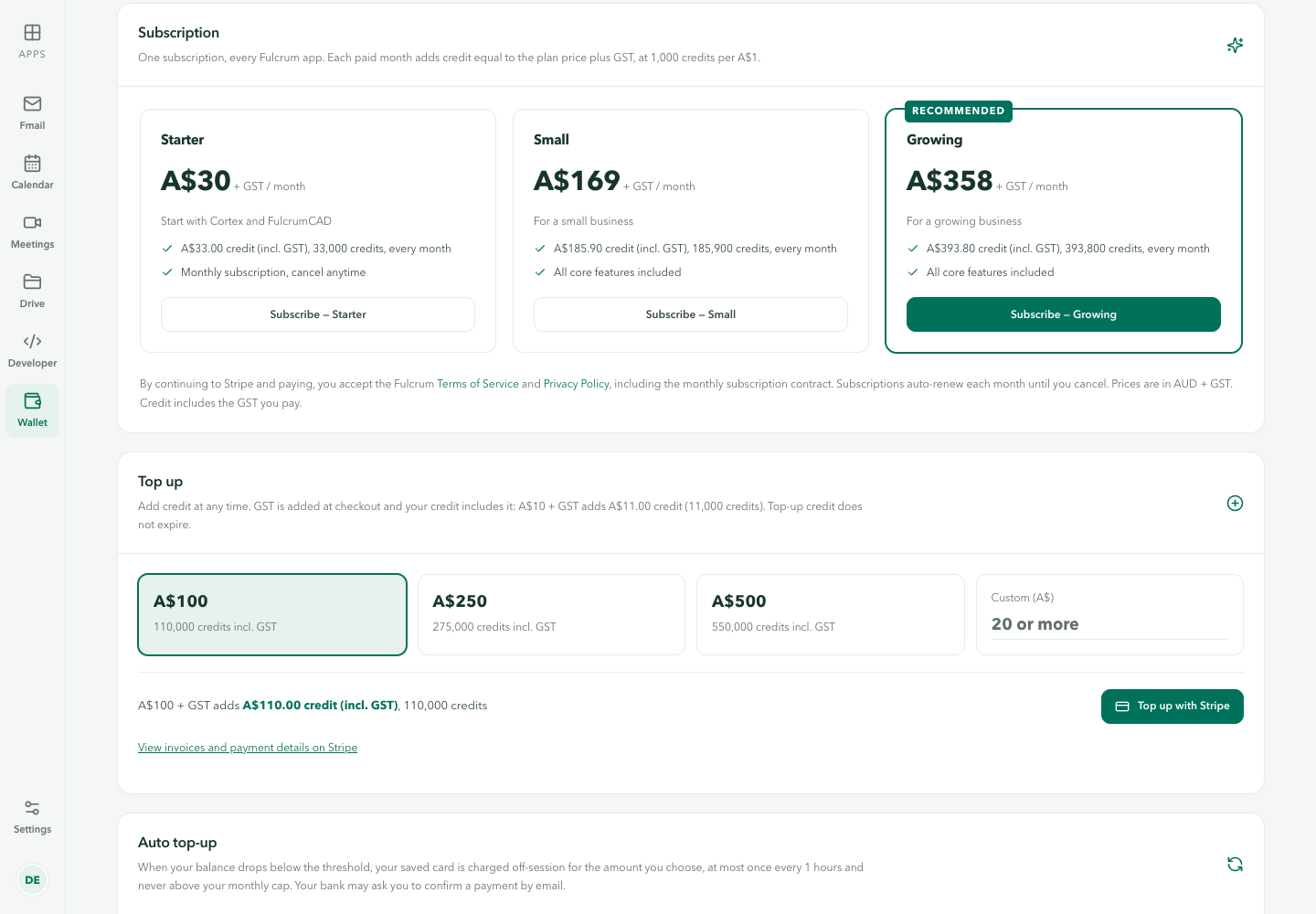
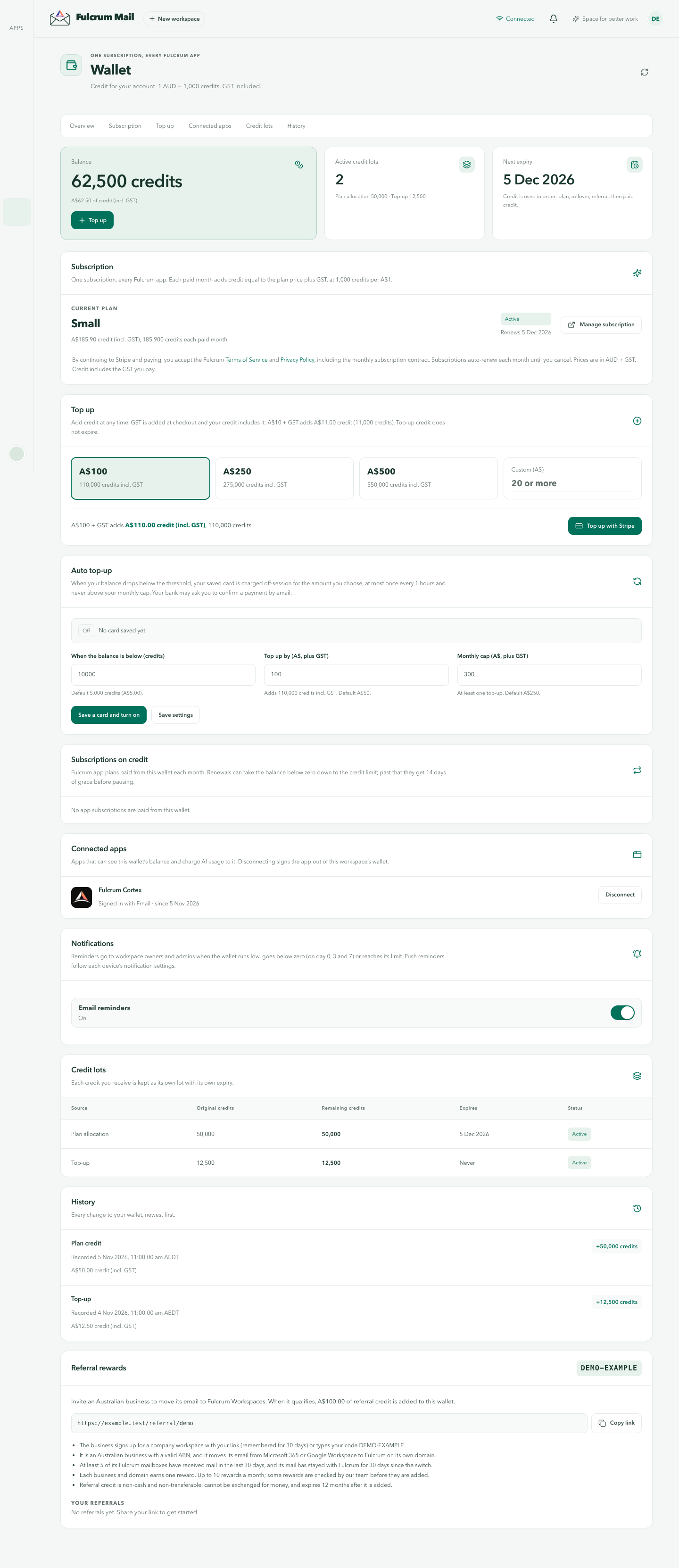
The Wallet UI shows credit and its Australian-dollar value, currently at 1 AUD = 1,000 credits including GST. Read the current account display and checkout for actual charges. A balance summary is a snapshot; inspect History to explain changes. Your credit may come from several lots with different sources and expiry dates.
| Term | What it means |
|---|---|
| Available balance | The balance currently reported for the selected Wallet. |
| Held credits | Funds reserved for work. They are distinct from the final settled charge. |
| Overdrawn credits | A reported amount beyond the available credit that needs attention. |
| Credit lot | A particular allocation of credits with its own source, remainder, expiry and status. |
| History entry | A recorded change, such as funding, a service charge, a hold or a release. |
Subscription and a one-off top-up are different
A subscription is a plan relationship with its own current terms and recurring billing. A top-up adds a selected amount of credit. Inspect the plan, account, amount and checkout before paying. Use Manage subscription when available for existing plan management rather than starting another subscription to answer a billing question.
The Top up section presents the supported amount and payment flow, including Top up with Stripe where configured. A button can be disabled when the account cannot manage billing or the service is not ready. Do not interpret a disabled checkout control as permission to change unrelated account roles.
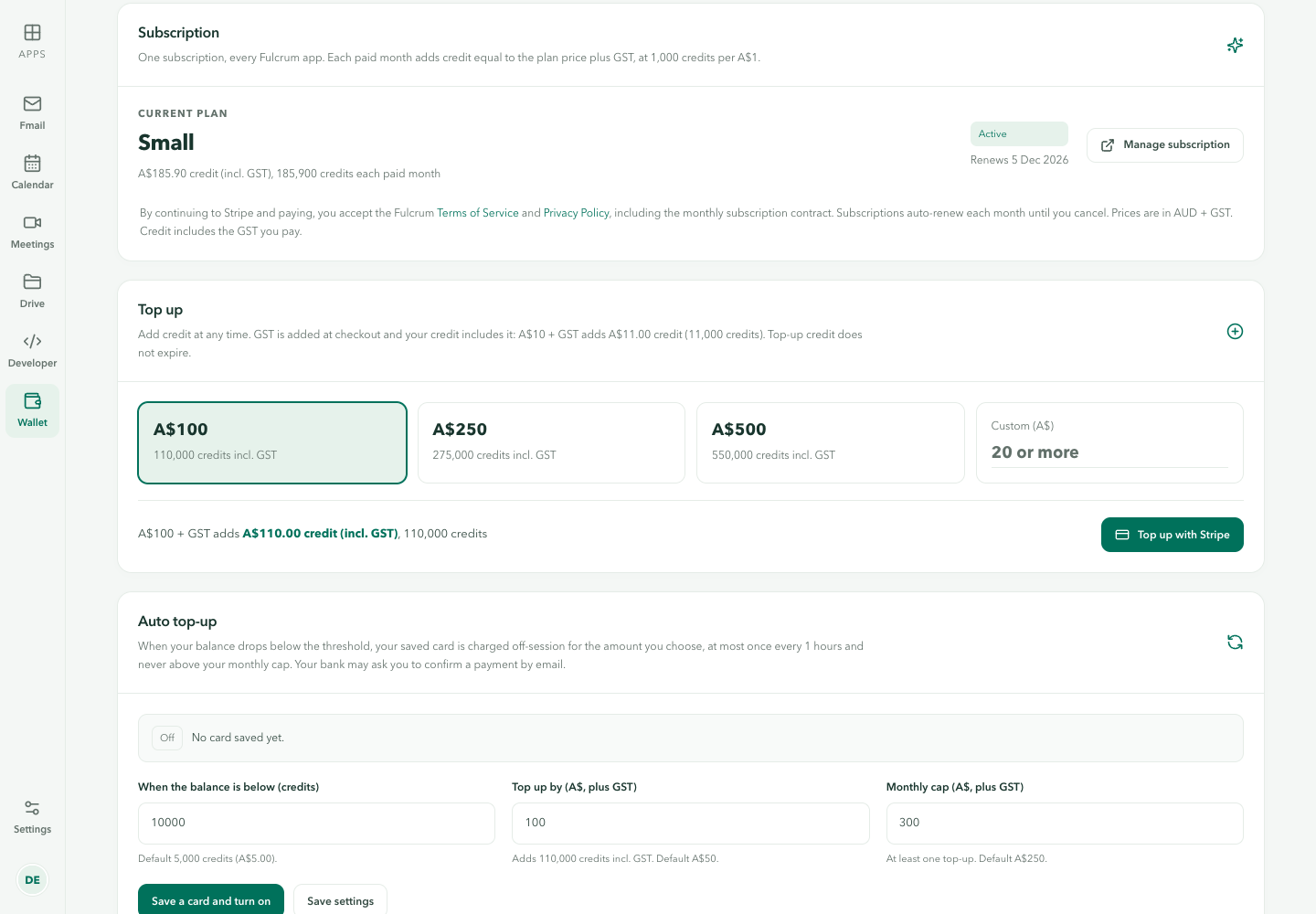
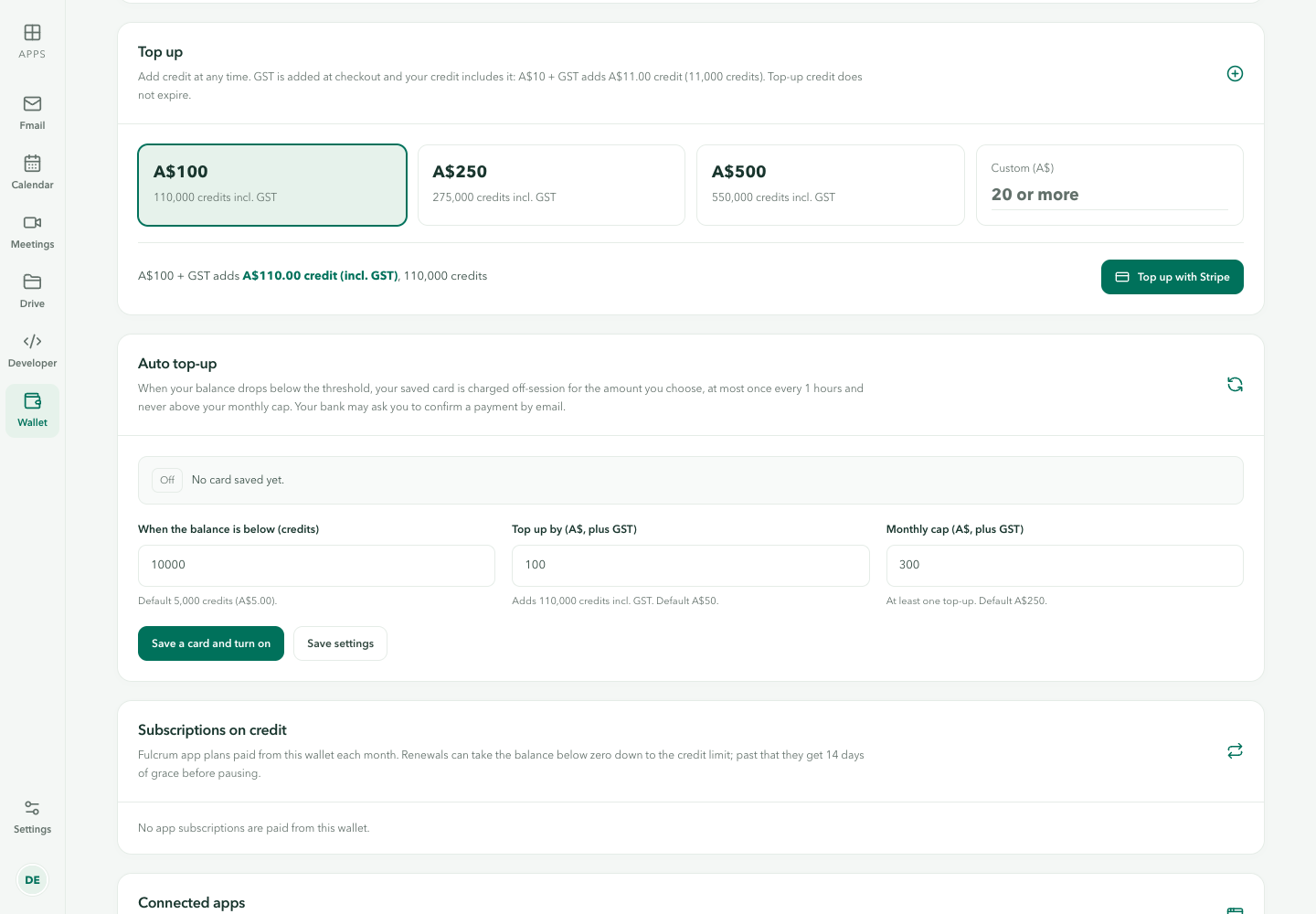
Use automatic top-up deliberately
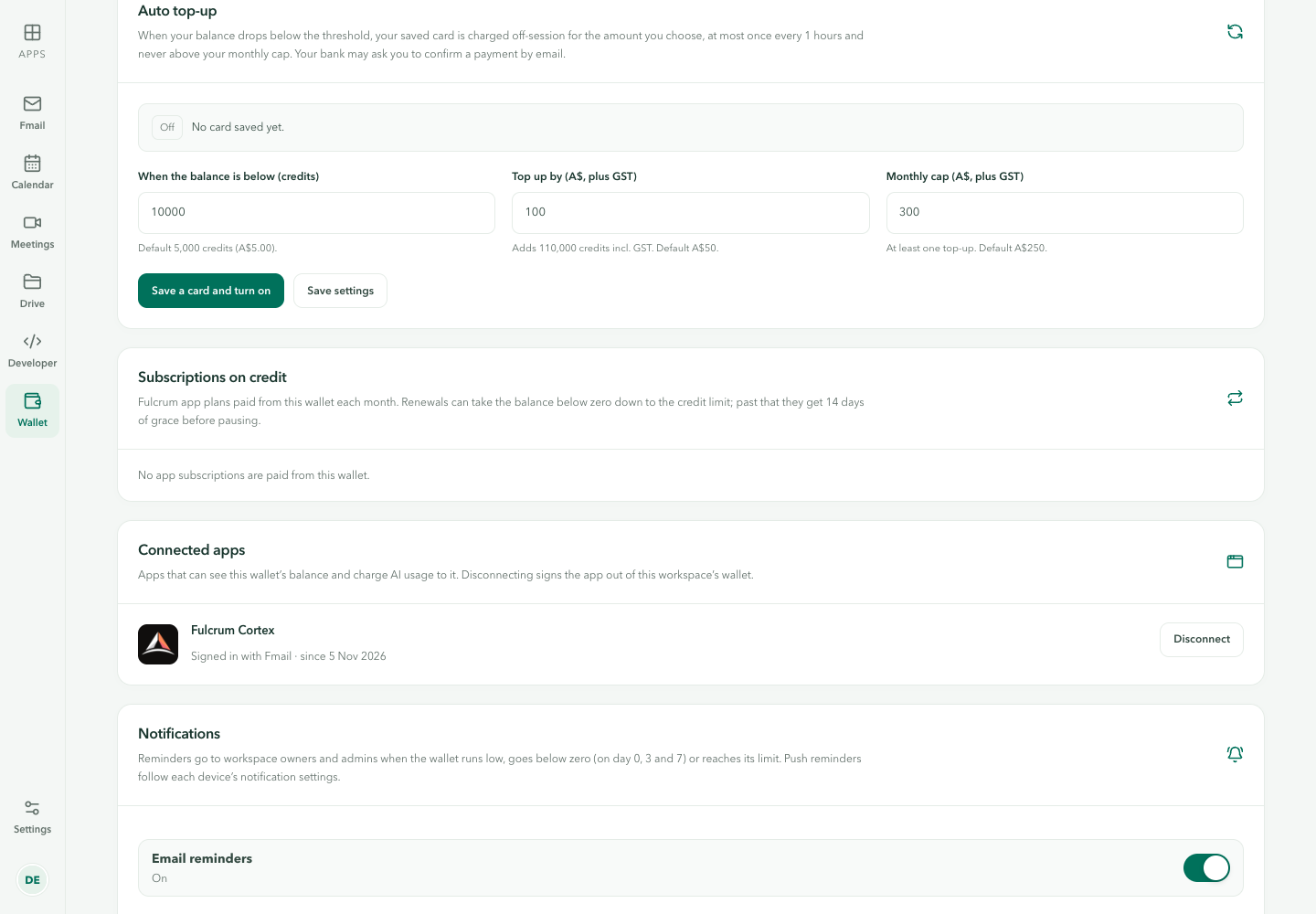
The Auto top-up section separates the low-balance threshold, the amount to add and the monthly cap. The current interface describes charging a saved card off-session when the threshold is reached, with a minimum interval and a monthly limit. Read those controls and the current payment terms before enabling them; a saved setting is an ongoing funding instruction rather than a one-off balance refresh.
- Check the intended Wallet and whether a payment method is already saved.
- Read When the balance is below (credits), Top up by (A$, plus GST) and Monthly cap (A$, plus GST).
- Choose values consistent with the funding you intend and inspect the displayed tax-inclusive credit calculation.
- Use the offered save/enable action only when you intend to authorise automatic funding. Verify the resulting enabled state and saved values.
If a bank asks for confirmation, follow the supported payment-provider flow. Do not remove limits or repeat charges to hide a pending payment. Choose amounts that suit your expected usage and budget.
Confirm a payment before retrying
- Complete the intended checkout through its supported provider flow.
- Return to the intended Wallet and inspect the updated balance.
- Find the corresponding funding entry in History and, where relevant, the payment-provider reference.
- If a result is pending or unclear, reconcile that transaction before submitting another payment.
A return URL containing a success indication is part of the handoff, not by itself proof that every Wallet record has updated. Preserve the transaction reference when asking for help, but omit payment-card data, account tokens and private screenshots.
Read credit lots and expiry
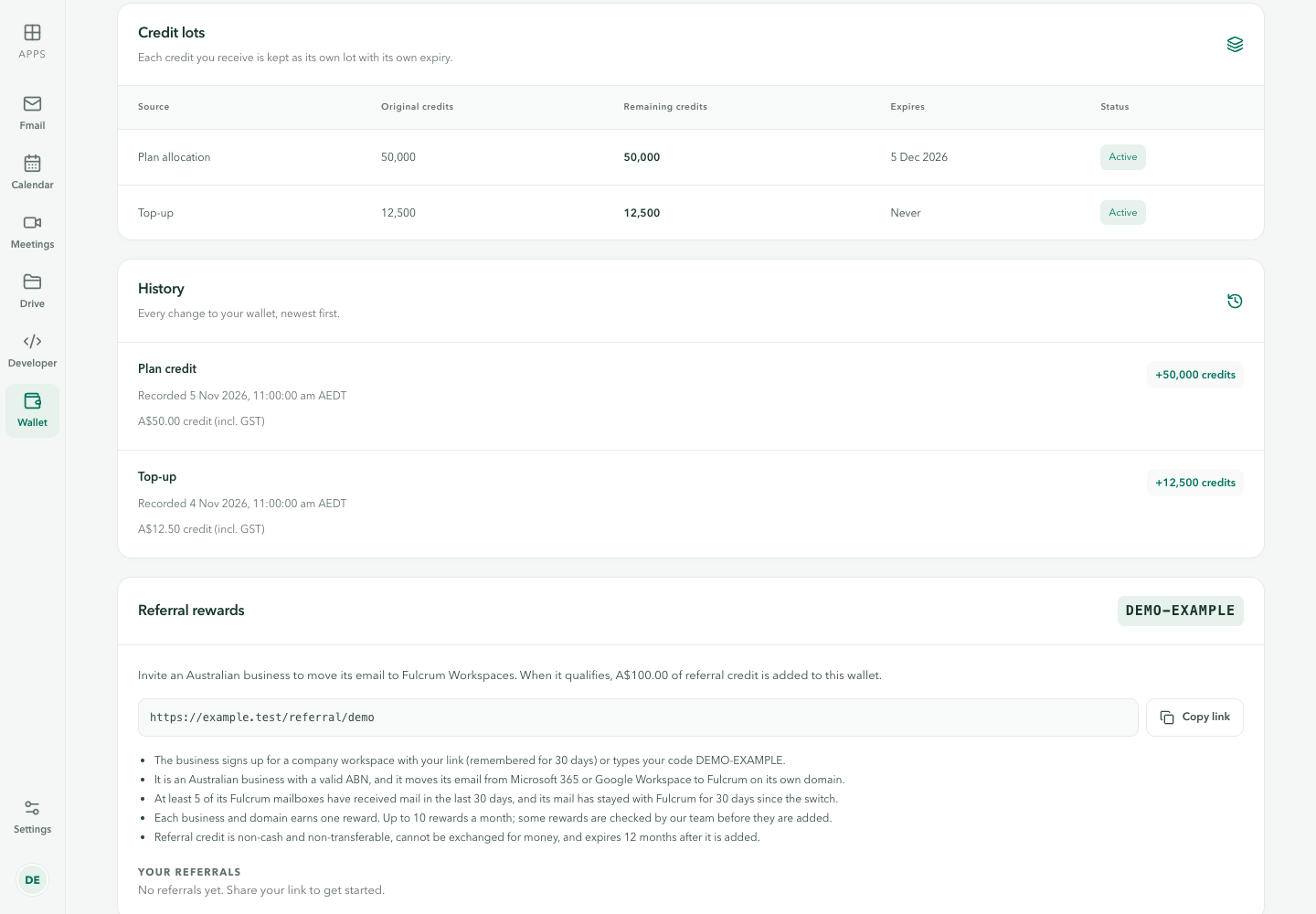
In Credit lots, compare Source, Original credits, Remaining credits, Expires and Status. Purchased, subscription, carried-over and promotional credit can have different rules. Use each displayed expiry instead of assuming the whole balance never expires. An expired or spent lot should not be treated as usable simply because its original amount was large.
Connected apps, usage and History
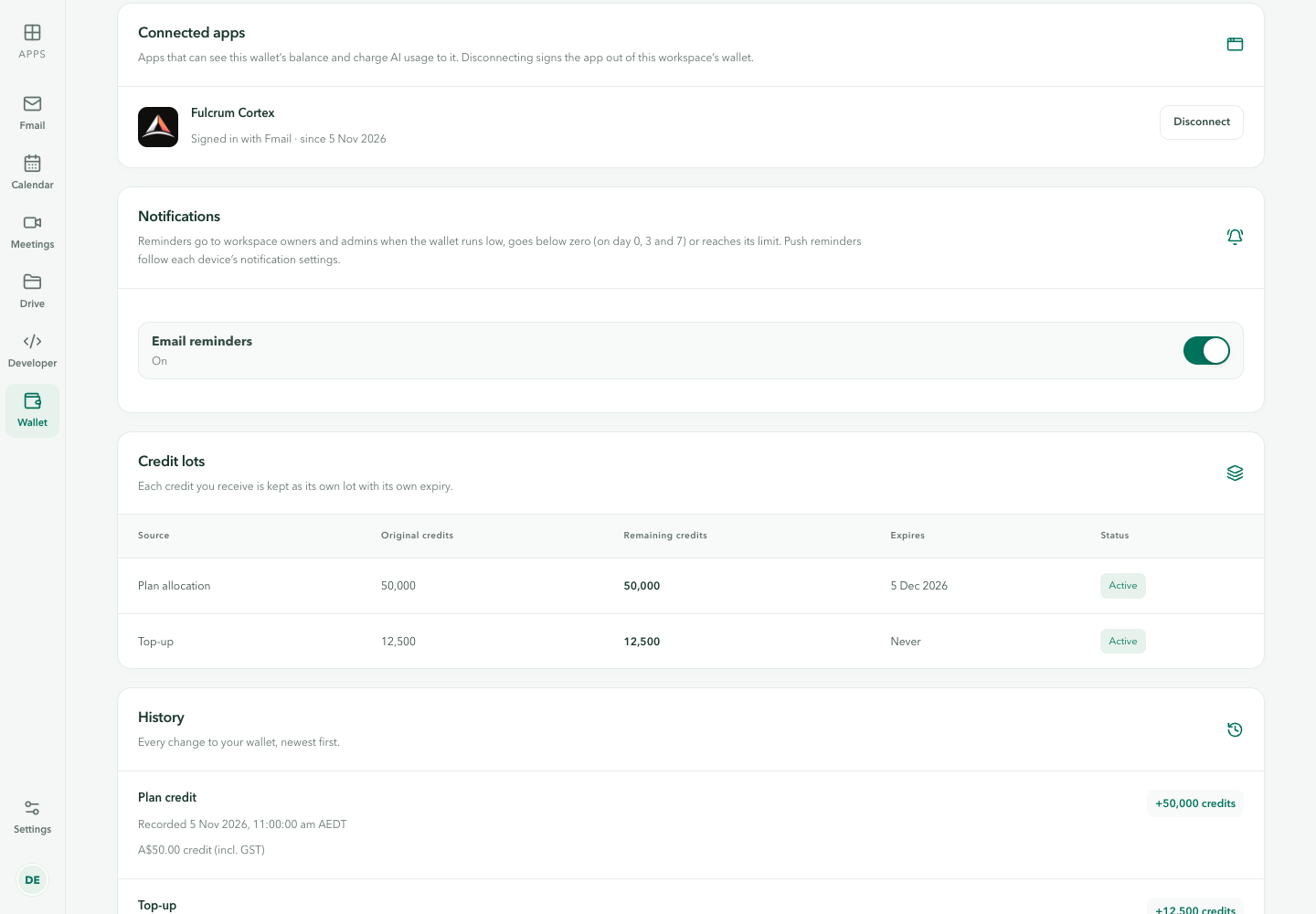
Connected apps helps identify services associated with the Wallet. In History, look for the app and description alongside the amount and time. Holds, hold releases and settled usage are different ledger events. The available history can be paginated; use its older-entry control when the transaction is outside the first loaded page.
Separate the Wallet question from service readiness. For example, voice can need Lyre credits or account-link repair even when a Chat balance is visible. Read the actual Lyre guidance and voice readiness guide rather than paying again based on a generic activation error.
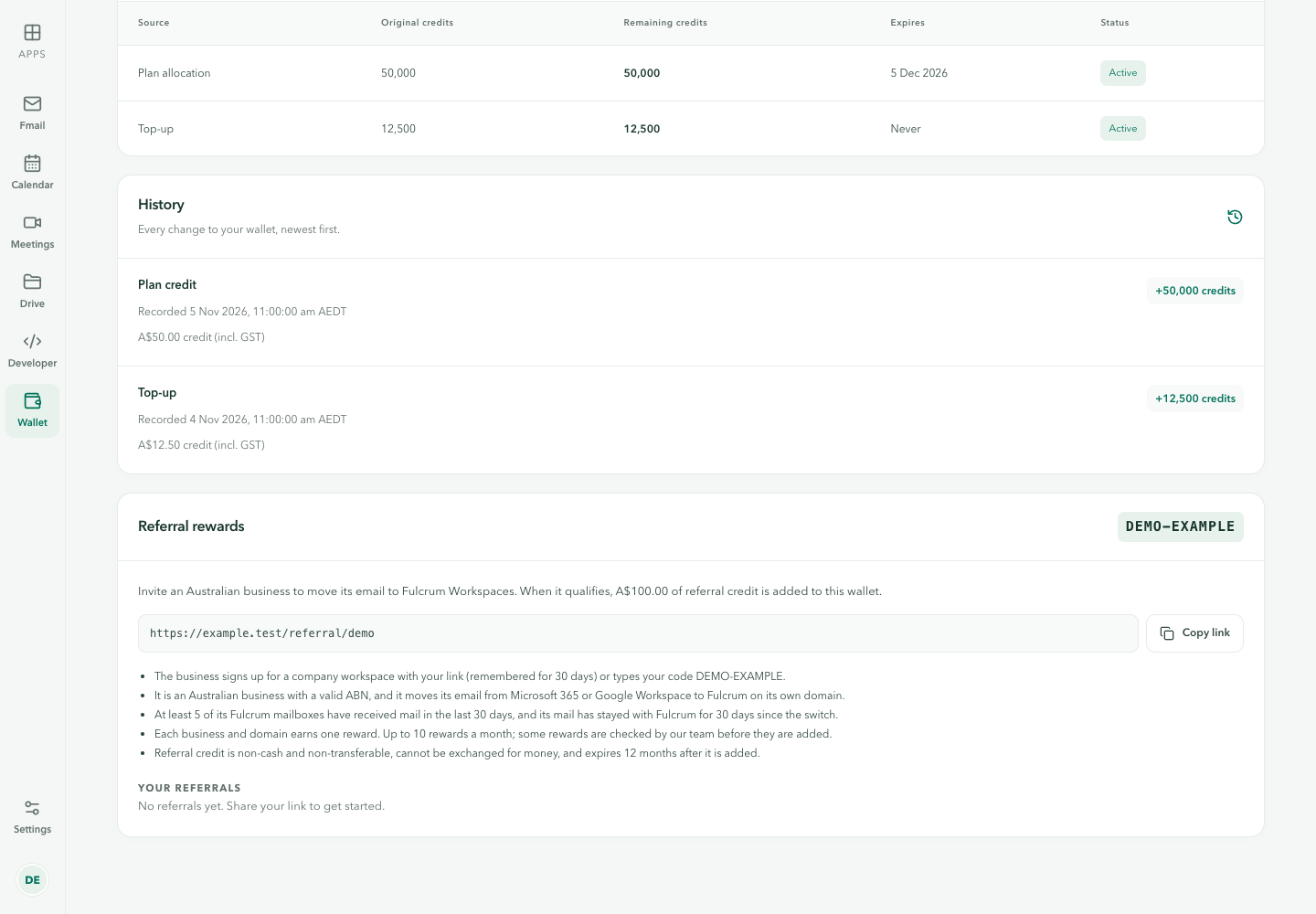
Connected apps, reminder settings and referrals
A connected app may read this Wallet’s balance and charge permitted usage. Disconnect is an access change, not a harmless refresh; it can sign an app out of this workspace’s Wallet. Confirm the intended effect before using it. Reconnecting an app and topping up its balance solve different problems.
The Notifications area can control low-credit email reminders for the relevant owners and administrators. Device push reminders also depend on each device’s notification permission. An enabled reminder does not guarantee the message was delivered, and disabling reminders does not prevent charges already authorised.
Where Referral rewards is shown, read the current eligibility and expiry terms before sharing a referral link. Referral credit has its own funding and usage rules. Copy your referral link from your Wallet account.
Wallet on a phone
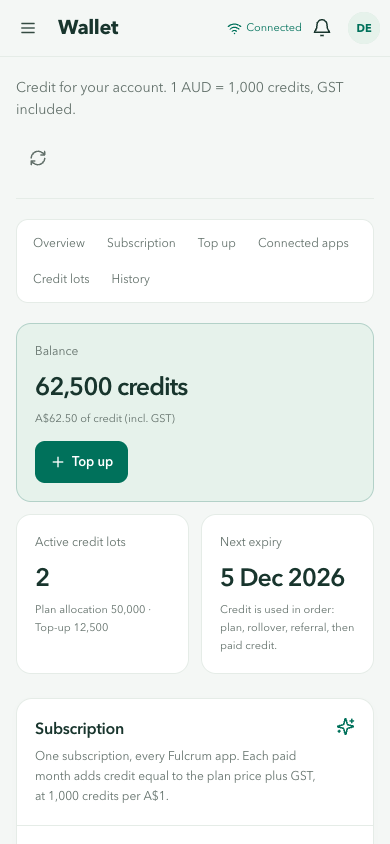
On a narrow screen, use the section navigation to move between Overview, Subscription, Top up, Connected apps, Credit lots and History. Check the full account context before entering checkout, and review the result again after returning from a payment-provider page.
Common problems
- Balance unavailable: check connectivity and the intended account; do not treat it as a zero balance.
- Credit changed unexpectedly: compare the time, connected app, holds and settled history.
- Top-up not visible: inspect payment status and the correct Wallet before another checkout.
- Cannot manage a plan: inspect billing authority and the current account context.
- Voice still unavailable: check the specific service error; a Wallet top-up cannot repair every connection problem.
Continue with the full Wallet overview, Chat balance display or Cortex Chat task index.
View the full Wallet screen or return to the Cortex Chat documentation.
Last updated