 FULCRUM CORTEX
A practical first week with Cortex Chat
Set up one useful assistant workflow, understand the settings and check results before expanding to more products.
Day one: learn the boundaries
Open Cortex Chat and confirm the Fmail identity and workspace you intend to use. Locate Sidekicks, People & groups and Connected Apps. These sections represent different contexts rather than interchangeable conversation windows.
Choose a Sidekick and inspect its name, role and status before sending a request. If the Sessions connection is unavailable, resolve that layer first. A successful sign-in does not establish that every assistant runtime and external service is ready.
Day two: give one clear job
Create a focused assistant or work with an existing one. The Skills and job description should explain the outcome, the information to use and any boundaries that change its decisions. Avoid putting private customer examples or credentials into a reusable role.
Try a task such as reviewing an enquiry and preparing a reply without sending. State what counts as finished and inspect the result. A small task gives you a baseline for later troubleshooting; connecting every product at once makes it harder to tell what is working.
Day three: understand settings
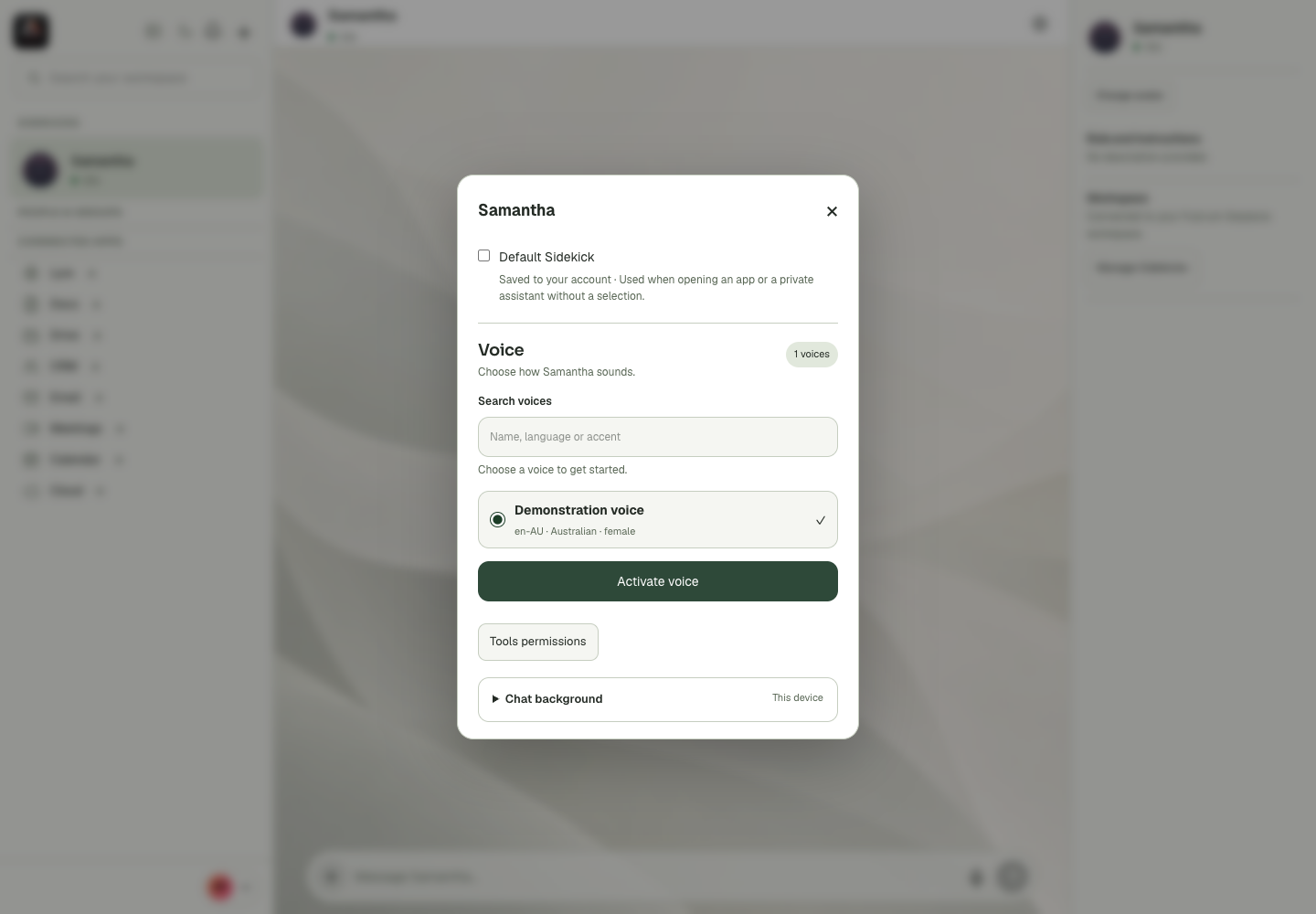
Conversation settings contain the default Sidekick preference, voice configuration, tool access and the local chat background. They do not all save in the same place. The default can be saved to the account; a background is explicitly a preference for this device and conversation.
App connection settings identify the selected account and access state. Tool permissions describe the operations available to the assistant. Owner approval and private or group policies can add separate restrictions. Read the saved state rather than assuming a checkbox or coloured indicator tells the whole story.
Day four: use a connected app
Open a relevant app alongside the assistant. In Docs, identify the actual document before asking for a review. In Email, check the active mailbox before drafting. In Calendar, confirm the time zone and destination calendar before creating a booking.
Use the smallest tool access that supports the intended workflow. After an authorised change, inspect the actual destination. A saved draft, a sent message and a delivered reply are different outcomes.
Day five: review voice and funding separately
A voice catalogue, an activated profile and a ready live conversation are different stages. If activation fails, read the service error at that stage rather than immediately changing microphone permissions. Only a live session introduces the actual microphone and remote-audio exchange.
Likewise, a Wallet balance in the profile is a summary, not a complete explanation of service readiness. Inspect the intended account, credit lots and transaction history when investigating funding. Reconcile an uncertain payment before starting another checkout.
End the week with a repeatable method
Write down a small procedure that produced a useful result. Include the source of truth, the action, the scope and the evidence of completion. The public Sidekick library provides examples you can read and adapt to the tools you actually have.
The Cortex documentation now includes more than 100 Chat task guides and a visual settings tour. The screenshot tour covers account settings, Sidekicks, groups, voice controls and tool permissions.